
 Doc Summary
When reviewing financial data, it is common for users to compare Shopify Finance Summary reports with the Profit & Loss report in Xero after data has been synced using SyncTools.
In most cases, the overall figures reconcile correctly.
However, there are specific scenarios where individual line items particularly refunds and discounts may appear different between Shopify and Xero.
This article explains one of the most common and expected reasons for this difference and helps you understand why the numbers look different even though the accounting is correct.
How Shopify Reports Refunds and Discounts
Shopify’s reporting is designed primarily from a sales and customer experience perspective, not from a strict accounting classification perspective.
When an order includes a discount and that order is later refunded, Shopify often handles the reporting in the following way:
- The refunded discount amount is included inside the “Refunds” value
- The original Discounts line is not adjusted downward
- As a result, Shopify’s “Refunds” total represents:
- Refunded product value
- Plus refunded discount value
From Shopify’s point of view, this reflects the total amount returned to the customer.
However, from an accounting perspective, this approach merges two conceptually different values refunds and discounts into a single line.
How SyncTools Processes the Same Data
SyncTools follows an accounting-first approach, designed to create clean, auditable entries in accounting systems such as Xero.
When SyncTools syncs Shopify data:
- Sales are posted to sales accounts
- Discounts are always reported and posted separately, based on your mapping configuration
- Refunds represent the reversal of sales amounts only
- Discount values are never absorbed into refunds, even when Shopify does so in its reports
This behaviour is intentional and aligned with standard accounting practices, where:
- Discounts are tracked independently for margin analysis
- Refunds represent returned revenue
- Each financial component remains transparent
Why the Difference Appears in Xero After Syncing
When the data synced by SyncTools is posted into Xero, the Profit & Loss report reflects this accounting-accurate classification.
As a result:
- Discounts appear clearly under a Discount account
- Refunds appear under a Refund account
- Shopify’s combined “refund including discount” figure is now split across two lines
This creates a visible difference when users directly compare:
- Shopify’s Refunds line versus
- Xero’s Refunds line alone
The difference amount is usually equal to the refunded discount value.
Example Explained Using the Report Comparison
In the illustrated example:
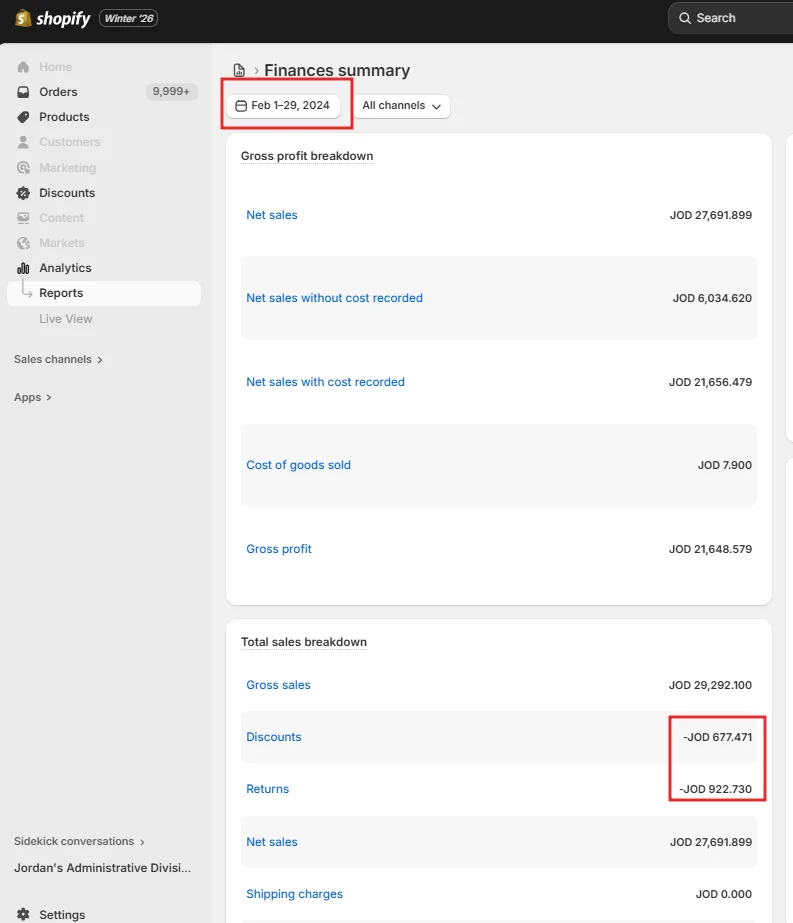
In Shopify Finance Summary
- Discounts are shown as a negative value
- Refunds include both refunded sales and refunded discounts
- Net sales are calculated accordingly
In Xero Profit & Loss (via SyncTools)
- Discounts are shown separately under a discount account
- Refunds reflect only refunded sales amounts
- Sales, discounts, and refunds are each clearly classified
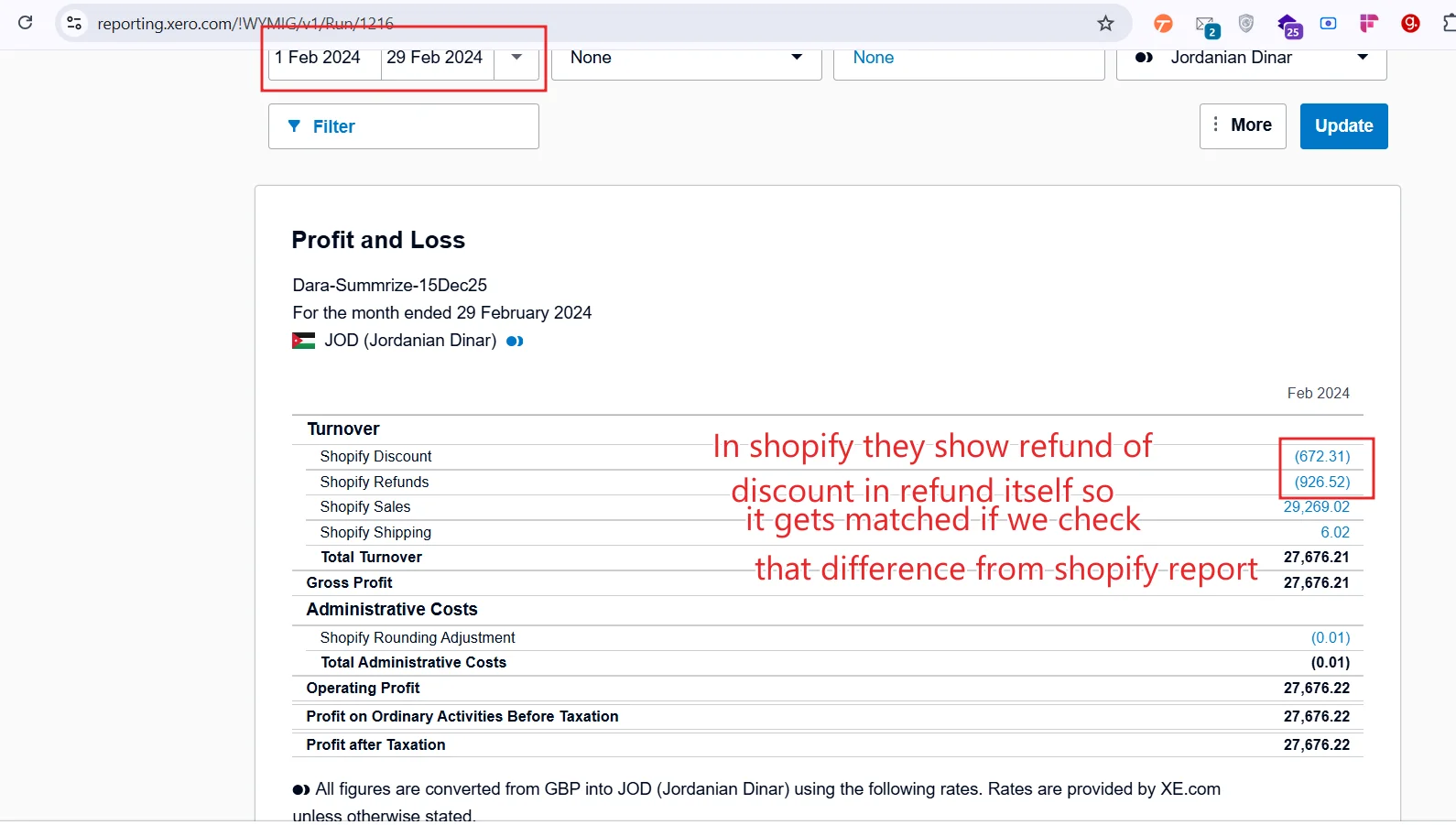
When comparing totals:
- The refund line alone does not match
- The combined impact of refunds + discounts does match
- Net sales and overall turnover reconcile correctly
This confirms that the sync is accurate and complete.
Why SyncTools Uses This Classification
SyncTools is designed to:
- Respect the account and tax mappings you configure
- Produce accounting entries that make sense to accountants and auditors
- Avoid hiding discounts inside refund values
- Preserve clarity in Profit & Loss reporting
By keeping discounts and refunds separate:
- Gross revenue, discounts given, and refunds issued remain visible
- Profitability analysis is more accurate
- Xero reports remain consistent and auditable
This approach ensures long-term reporting accuracy, even if it differs from Shopify’s presentation.
How to Correctly Reconcile Shopify and Xero Reports
When reviewing reports after syncing with SyncTools:
- Do not compare refunds in isolation
- Always consider refunds and discounts together
- Focus on net sales or total turnover, not individual rows
- Ensure the date range matches exactly in both systems
Once discounts are included in the comparison, the apparent mismatch disappears.


