---
title: "Basic Steps to install SyncTools app in Linnworks-XERO"
url: "https://synctools.ai/docs/linnworks-xero-integration/basic-steps-to-install-synctools-app-in-linnworks-to-xero"
date: "2025-06-30T04:35:48+00:00"
modified: "2025-09-26T11:20:20+00:00"
author:
name: "Vivek Vadukiya"
word_count: 3502
reading_time: "18 min read"
summary: "Unlock seamless financial integration between Linnworks and Xero with SyncTools an application designed to streamline data synchronization and enhance your e-commerce financial workflows.
By con..."
description: "Unlock seamless financial integration between Linnworks and Xero with SyncTools an application designed to streamline data synchronization and enhance your e..."
keywords: "Linnworks to XERO"
language: "en"
schema_type: "WebPage"
---
# Basic Steps to install SyncTools app in Linnworks-XERO
_Published: June 30, 2025_
_Author: Vivek Vadukiya_
Unlock **seamless financial integration** between **Linnworks** and **Xero** with **SyncTools** an application designed to streamline data synchronization and enhance your e-commerce financial workflows.
By connecting these powerful platforms, you gain the ability to effortlessly manage your **business transactions, invoices**, and **financial data**.
The following steps provide a guide to:
- Installing SyncTools in Linnworks
- Establishing a robust link to Xero
This ensures a cohesive and efficient operational experience.
## SyncTools
- Direct Sign up from the website is not available. So the user must install it from the **Linnworks app store**.
- All the emails (Confirmation + User information) will be sent to the **email which is registered in the Linnworks account.**
- If **Linnworks email** is of another team member, you will need them to forward two emails to you.
- Please select the **Linnworks account from which** you want to sync the orders.
## Steps to install SyncTools app – (You can refer to this [ Video](https://www.youtube.com/watch?v=MSZPtVEswzI&t=58s&ab_channel=SyncTools))
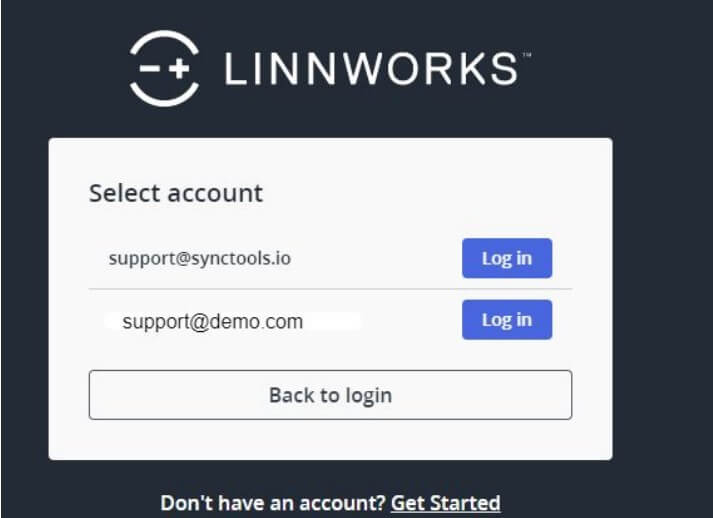
- Open and Log in to Linnworks
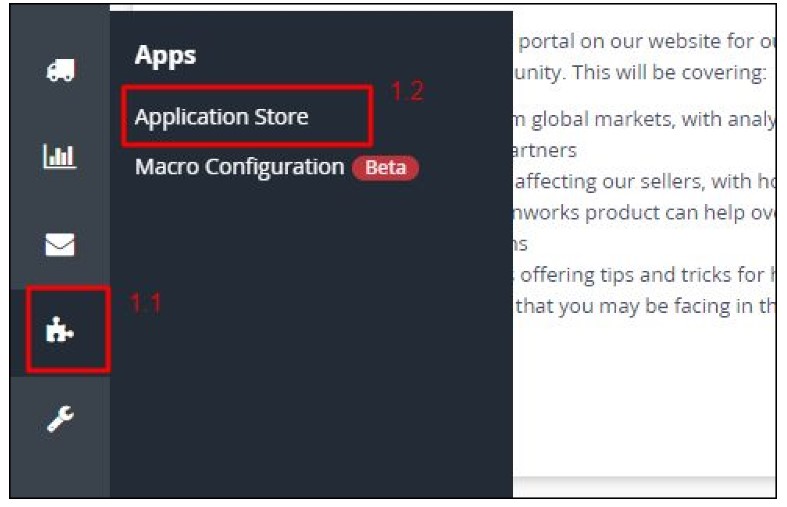
- Click on **Application > Application store**
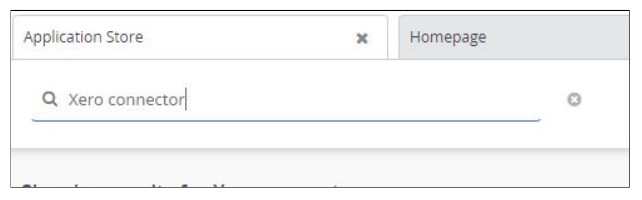
- **Search for xero connector**
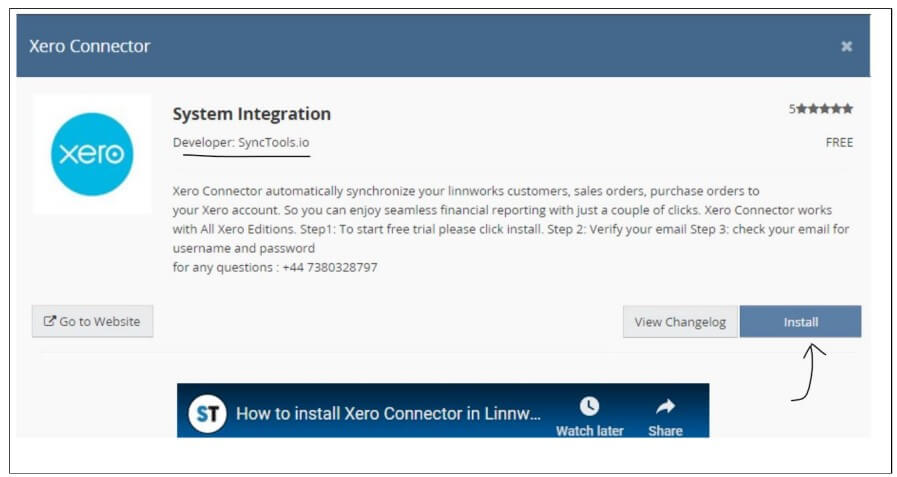
- Click on the **Read More** button of **Xero connector tool**
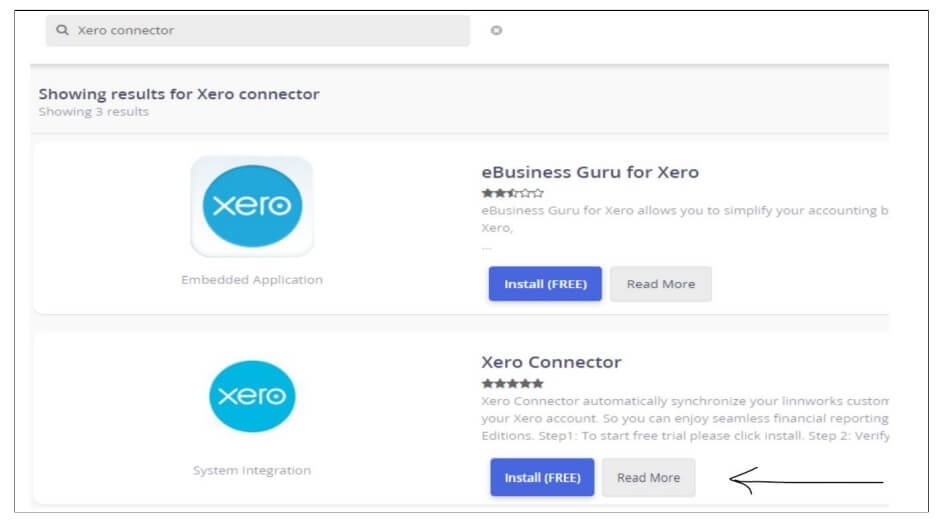- Make sure the developer name is **SyncTools.io** and click on install button
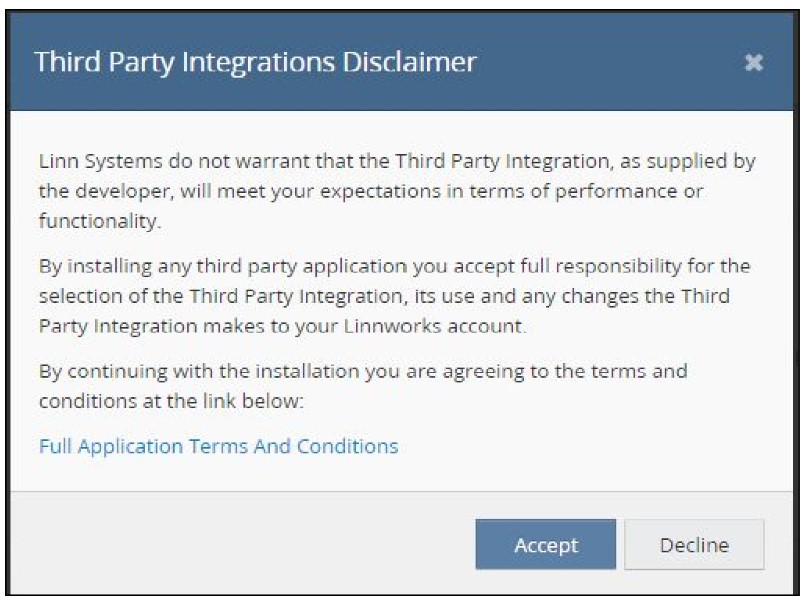
- Accept **Third Party Integrations Disclaimer**
- Click on the **Next** button
- Click on the **Install** button
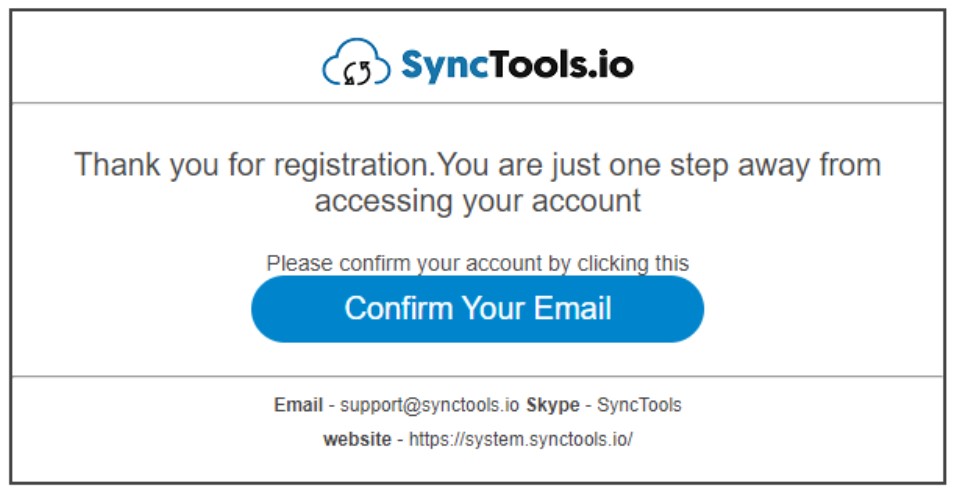
- You will get a confirmation email, click on the **confirmation link**
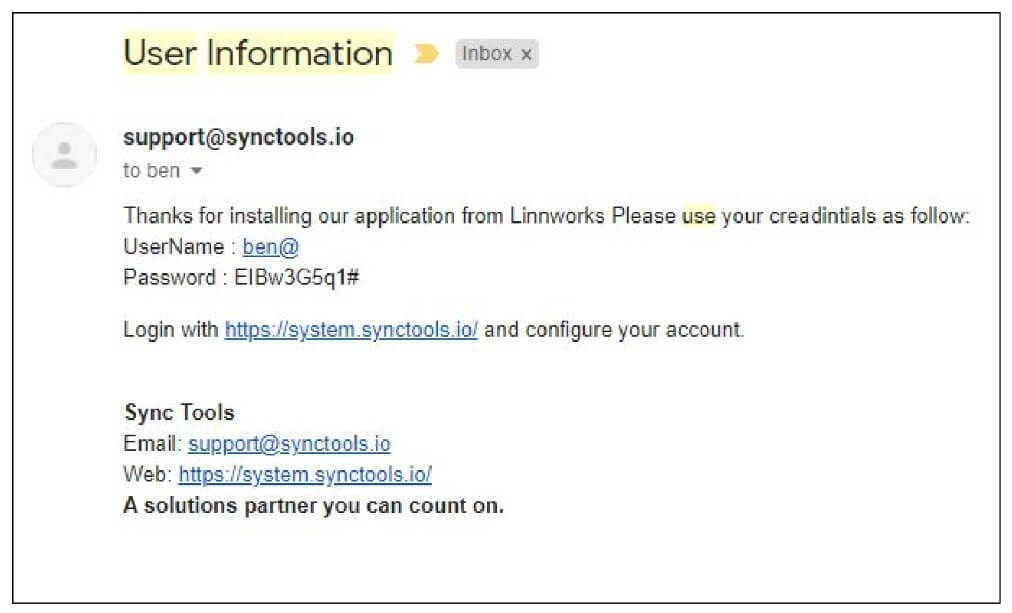
- User Information (Username + Password) will be sent
## Log in to the SyncTools
- Use the credentials sent by SyncTools to Login
- This is the link for SyncTools system:
- Or you can go to [ https://synctools.ai](https://synctools.ai) and click on **Login** button
## Configuration and setting up the SyncTools account –
Use this [ PPT](https://docs.google.com/presentation/d/1RveqDokjHYTOKnwcMIHfyQxtDWZYLOiFmU3H2R2yehg/edit) for better understanding
If any support is needed, you can send an email to [ support@synctools.io or](mailto:support@synctools.io%20or)
you can call us on [+44 7380328797](tel:+44%207380328797)
## Steps: Configure linnworks to xero integration
- **Select the plan** as per **order volume**
- **Set up the profile** so that **SyncTools team** can reach to you faster
- Click on **Settings > Connections**
- Click on the Xero icon and connect your Xero account.
- Make sure the button on the rightest side is at OFF. (It is for automatic sync)
- First You should **test a few orders manually** so that we can prevent back and forth.
- Click on the **Configuration button**
## Module 1 – Add accounts to Xero
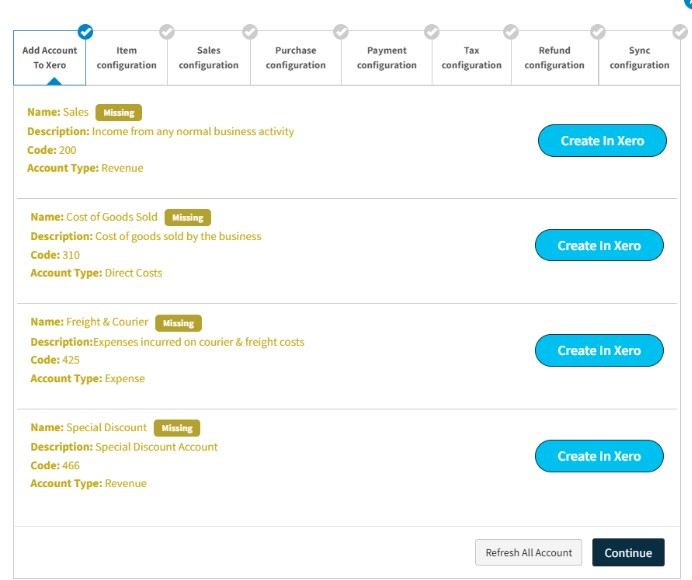(Showing the required account that needs to be existed in xero.)
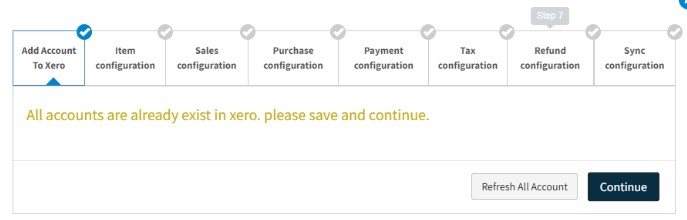(Showing that all required account is exists in your account. so, please continue. )
- It suggests if any new chart of account should be created or not, in most cases this module is ignorable as users already have their Xero set up.
- **Refresh All Account** button is used for **getting the latest chart of accoun values from xero** for the **sales** and **refund** configuration.
- **Create in Xero** button will **create the chart of the account** with displayed fields.
- Continue
## Module 2 – Item configuration
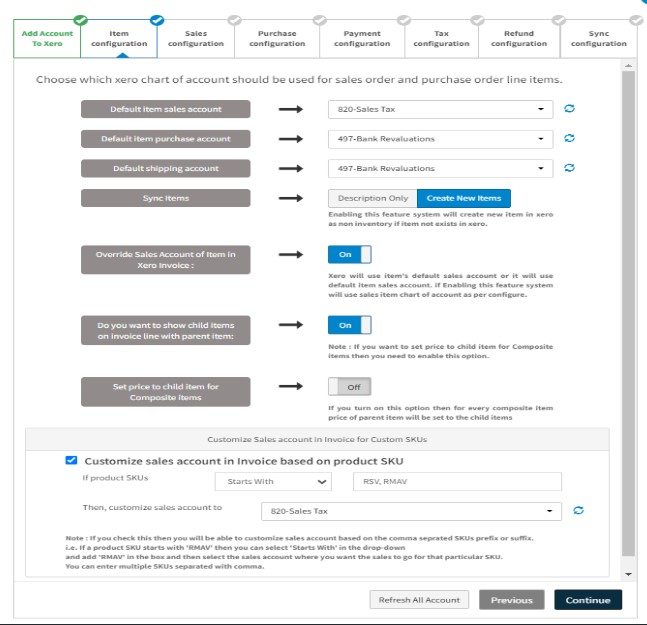(Showing the Item configuration screen with it’s all settings.)
- Select **Default sales account** in which the **sales will be booked**.
- Select **Default purchase account** in which the purchase will be booked. (Ignorable if you are not syncing purchase orders from Linnworks)
- Select **Default shipping account** in which the shipping amounts will be booked.
(Showing the screen image of the default account selection for line items. )
-
### Sync items:
- Select **“Description Only”** to create an invoice in Xero without adding all the products. This means the invoice will have the Sales Order Item Name and SKU in the Description field, but there won’t be any Item Code.
- Select **Create New Items** if you want to create an item in Xero. If the item doesn’t exist in Xero, it will be added as a non-inventory item.
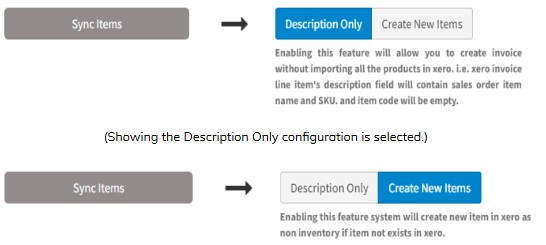 - (Showing the Create New Item configuration is selected.)
-
### Override Sales Account of Item in Xero Invoice:
- Keep it **OFF if you want to record your Sales Revenue in Xero using the Default Item Sales Account** or the Item’s Default Sales Account in Xero.
- Keep it **ON if you want to record your Sales Revenue in different charts of accounts** based on the configuration for multiple sources.
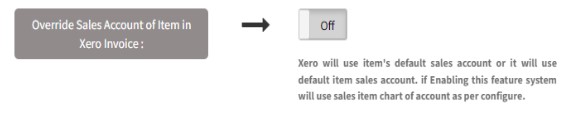 - (Showing the Override sales account of the item in xero invoice configuration.)
-
### Do you want to show child items on invoice line item with parent item:
- Keep it **OFF if you prefer not to display child items on the invoice line item** alongside the parent item.
- Keep it **ON if you want to show child items on the invoice line item** alongside the parent item.
 - (Showing the Do you want to show child items on invoice line with parent item configuration.)
-
### Set price to child item for Composite items:
- Keep it **OFF if you don’t want to set prices to the child item** for Composite items.
- Keep it **ON if you want to set prices to each child item** for Composite items.
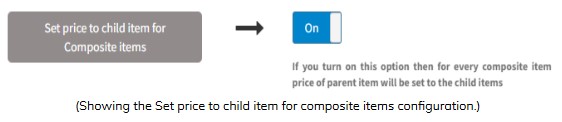 - (Showing the Do you want to show child items on invoice line with parent item configuration.)
-
### Customize Sales account in Invoice for Custom SKUs
- Enable this feature if you want to select a single Sales Account for a multipleProduct SKUs using comma-separated Product SKUs’ prefixes or suffixes.
It is advised that you include the SyncTools team while configuring this feature as this will prevent any back & forth in any confusion.
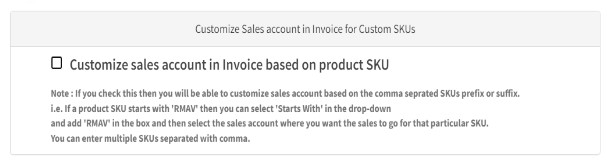 - (Showing the disabled customize sales account in invoice based on product SKU configuration.)
 - (Showing the enabled customize sales account in invoice based on product SKU configuration.)
## Module 3 – Sales configuration
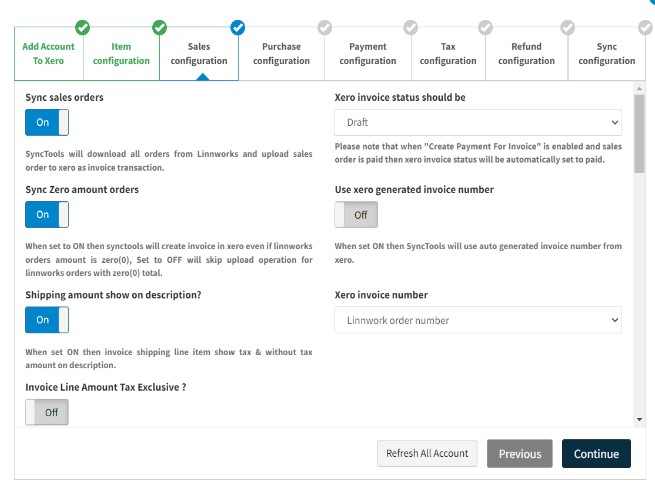-
### Sync Sales Orders
- Make it **ON** so that Linnworks sales order can be synced as **Xero invoice**.
- Make it **OFF** if you do not want to sync Linnworks sales orders.
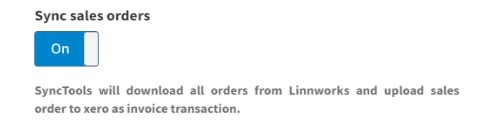 - (Showing the sync sales order configuration.)
-
### Sync Zero Amount Orders
- Keep it **OFF** if you do not want to sync orders with total amount of 0.
- Keep it **ON** if you want to sync orders with total amount of 0.
 - (Showing the sync zero amount order configuration.)
-
### Shipping Amount Show on Description
- Keep this **OFF** if you don’t want to show Shipping Amount on Description.(mostly preferred)
- Keep this **ON** if you want to show Shipping Amount on Description.
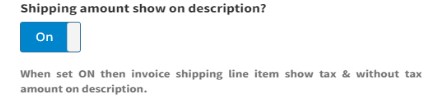 - (Showing the sync zero amount order configuration.)
-
### Invoice Line Amount Tax Exclusive
- Keep this OFF if you don’t want to create Invoice Line Amount in Xero as Tax Exclusive. (mostly preferred)
- Keep this ON if you want to create Invoice Line Amount in Xero as Tax Exclusive.
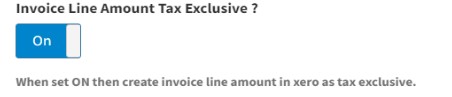 - (Showing the invoice line amount tax exclusive configuration.)
-
### Xero Invoice Status Should Be
- - Ignorable if you are only syncing PAID orders.
- If you are syncing UNPAID orders too, you can select what should be the invoice status of the UNPAID orders – 1) Awaiting payments 2)Awaiting approval 3) Drafts
- This setting will affect UNPAID orders only, All the PAID orders will be created as PAID invoices.
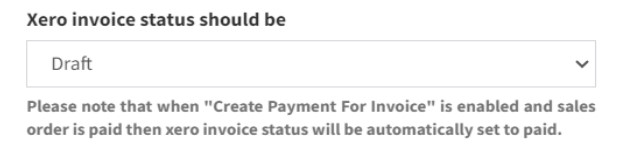(Showing the Xero invoice status should be configured.)
-
### Use Xero Generated Invoice Number
- Keep it OFF if you want Xero invoice number same as Linnworks order ID. \[advised\]
- Keep it ON if you want Xero to generate the invoice number
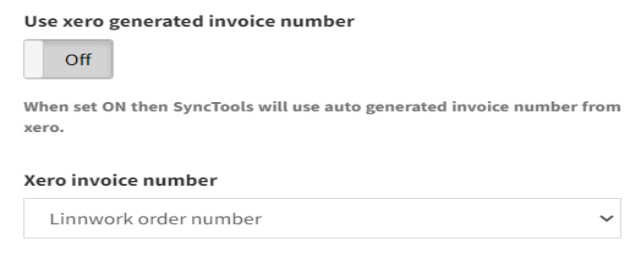 - (Showing the Disabled Use xero generated invoice configuration.)
- 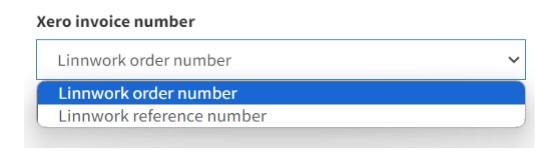 - (Showing the options that are used in xero invoice number.)
- 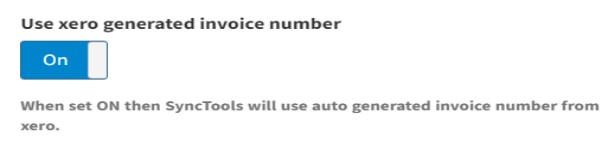 - (When Use Xero generated invoice number is ON the dropdown xero invoice number is hided.)
-
### Which Type of Linnworks Orders Do You Want to Sync?
- Check the orders which you want to sync –
- PAID orders
- UNPAID orders
- PENDING orders
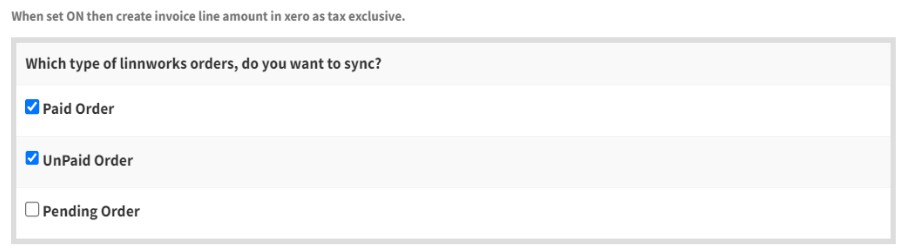(Showing which type if linnworks orders, do you want to sync.)
-
### Do you want to update Unpaid Linnworks Order’s Status to ‘Paid’ when matching Xero invoice’s full payment is recorded in Xero?
- - Keep it OFF Keep if you don’t want to update the payment status in Linnworks when order is paid in Xero.
- Keep it ON if you want to update the payment status in Linnworks when an order is paid in Xero.
- Note: This configuration is available when the unpaid order is checked from above configuration
(Showing Do you want to update unpaid order’s payment status in configuration.)
-
### Enable Rounding to Adjust Tax/Total Discrepancy
- - In our system, you get to decide how closely the amount in Linnworks and Xero need to match. Here are your options:
- **Option 1:** Turn ON (Enable) :
- Choose this if you want the total in Xero to be exactly the same as in Linnworks. It helps fix any small differences caused by rounding off the unit amount of the
order line items.
- **Option 2:** Turn OFF (Disable) :
- Pick this if you’re okay with a bit of wiggle room in the total. It means there might be some tiny differences, but you’re fine with that.
- Point to Think About:
- Turning ON means everything matches perfectly, but be careful about the financial details.
- Turning OFF gives you flexibility, but keep an eye on any small differences.
- So, it’s your call! If you need everything exact, turn ON. If you’re okay with a bit of difference, turn OFF
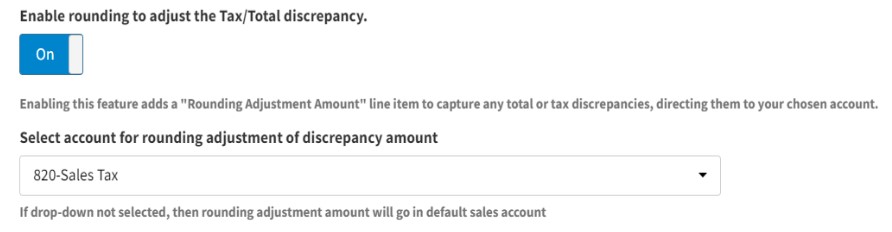
(Showing Enable rounding to adjust the Tax/Total Discrepancy in sales configuration.)
32.
### Enable Rounding Off for SyncTools Advance Tax Rate
- This configuration is used for line item when the linnwork tax rate is comes with the decimal places, and user have configured the advance tax based on linnworks tax rate wise setting at that time s/he need to enter the tax with/without decimal places.
- **Option 1:** Turn ON (Enable): System will round the linnworks tax rate and get the relevant advance tax setting for the shipping and line item.**Note:** If your tax rate is 20.5476. Then, this configuration refines it seamlessly to 21.00.
- **Option 2:** Turn OFF (Disable): System will not round the linnworks tax rate and shippling and line tax rate may be different from the advance tax configuration.
(Showing Enable rounding off for SyncTools Advance tax rate in sales configuration.)
 - (Showing sales configuration few settings which default settings is synctools recommended.)
-
### Invoice date should be??
- Select **Received date** if you want Invoice with the date on which order was received.
- Select **Processed date** if you want Invoice with the date on which order was processed.
-
### Which type of linnworks order status, do you want to sync?
- Select **Processed only** if you want to sync orders which are Processed in Linnworks.
- Select **Open only** if you want to sync orders which are in Open status in Linnworks.
- **It can not be both.** As duplication may occur. (we sync order which is Open and then again the same order is synced when it is processed)
-
### How would you like to create customers in xero?
- Select **Use linnworks order customer name+billing address to create customer in xero** if you want to sync every individual order as an invoice
- All other options are for grouped orders as per the groping settings. it is advised that you include the SyncTools team while configuring the grouping feature as that will help prevent back and forth in any confusion.
-
### Enter Point of Sale Orders Identifier in Linnworks extended property
- Utilize this feature in case if you have any POS orders in Linnworks, you can enter an identifier in Linnworks extended property and Give a name of the customer to create an invoice in Xero for POS orders.
-
### Please map xero invoice reference number field with Linnworks sales order
- Select **Reference number** if you want **Linnworks order reference** as Xero invoice reference number. (Most preferred)
- Select **Order number** if you want **Linnworks orderID** as Xero invoice reference number. (Most preferred)
- Select **External reference** if you want **External reference of Linnworks order** as **Xero invoice reference number.**
- Select **Secondary Reference** (Channel reference) if you want **Channel reference number** of Linnworks order as Xero invoice reference number.
-
### Sync sales orders for selected channel only
- If you want to sync orders from certain channels only, you can use this filter. Same if you do not want to sync orders from certain channels.
- Also, if you want to use it for channel tracking in Xero for a sales channel, it can be used.
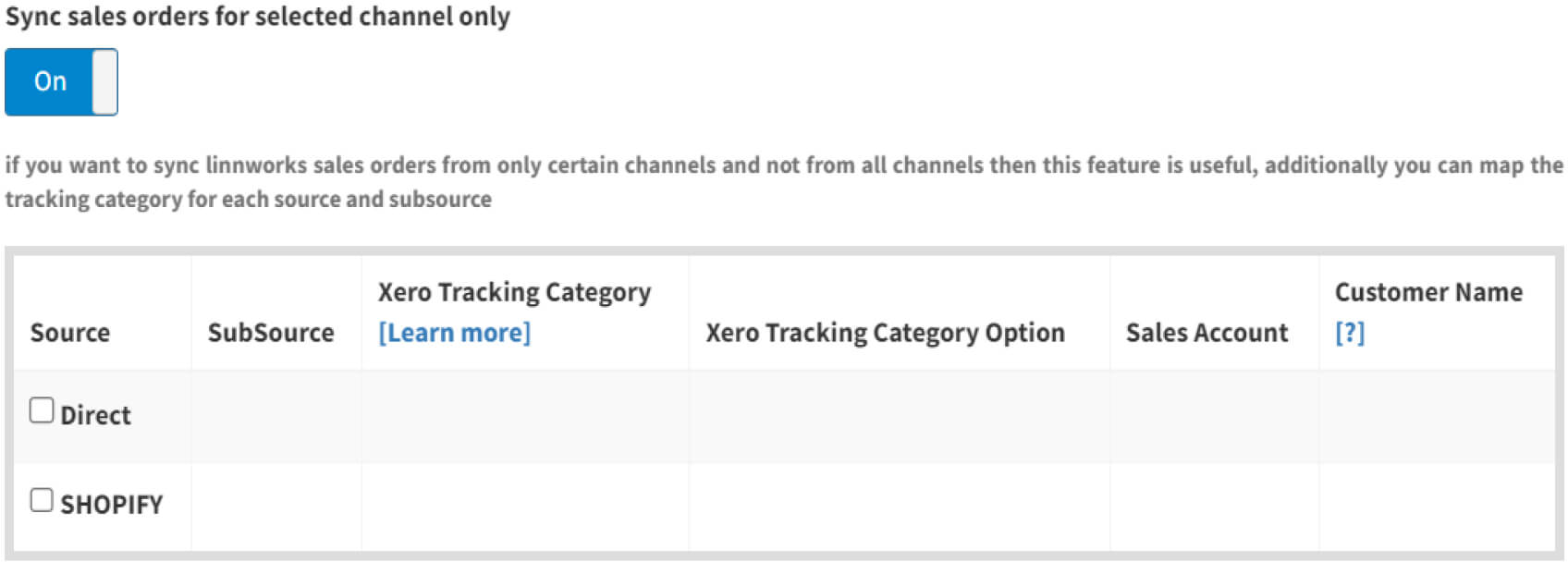(Showing Sync sales orders for selected channel only in configuration.)
-
### Enable sales order filter by custom source
- If you want to sync orders from certain channels only, you can use this filter. Same if you do not want to sync orders from certain channels.
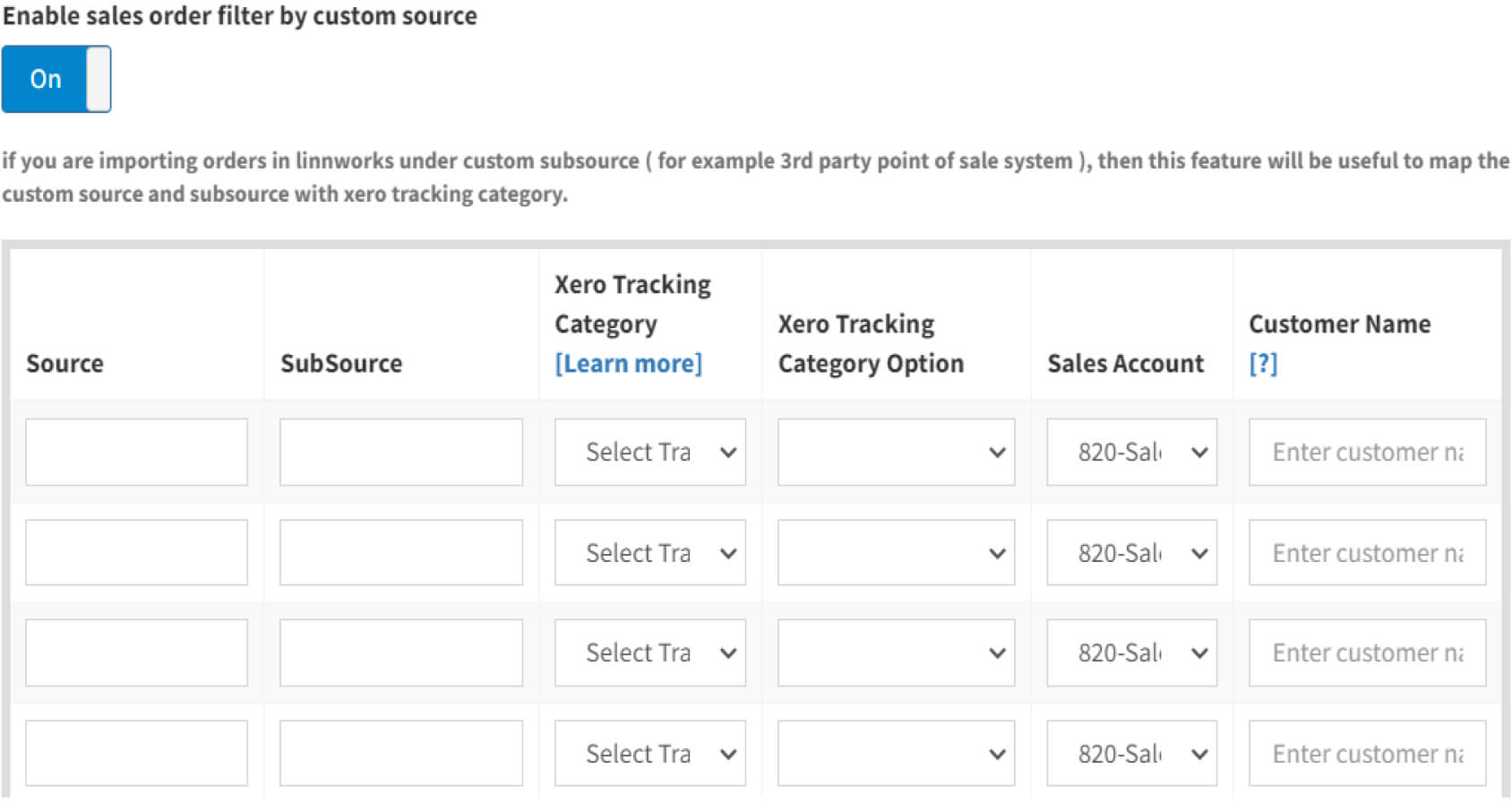(Showing Enable sales order filter by custom source in configuration.)
-
### Enable grouping of sales order
- This is a useful feature for users with **monthly orders** more than **7000.**
- It helps you create one invoice for every channel with summarized total, tax and order count.
- Same for subsource and country wise.
- It is advised, users should contact the support team before setting up grouping features as that will help stop the back and forth under any wrong settings.
- [ How to track orders in Linnworks which are grouped under one invoice in Xero by SyncTools?](https://synctoolstorage.blob.core.windows.net/content/SyncTools-Tracking-of-grouped-orders.pdf)
- Continue
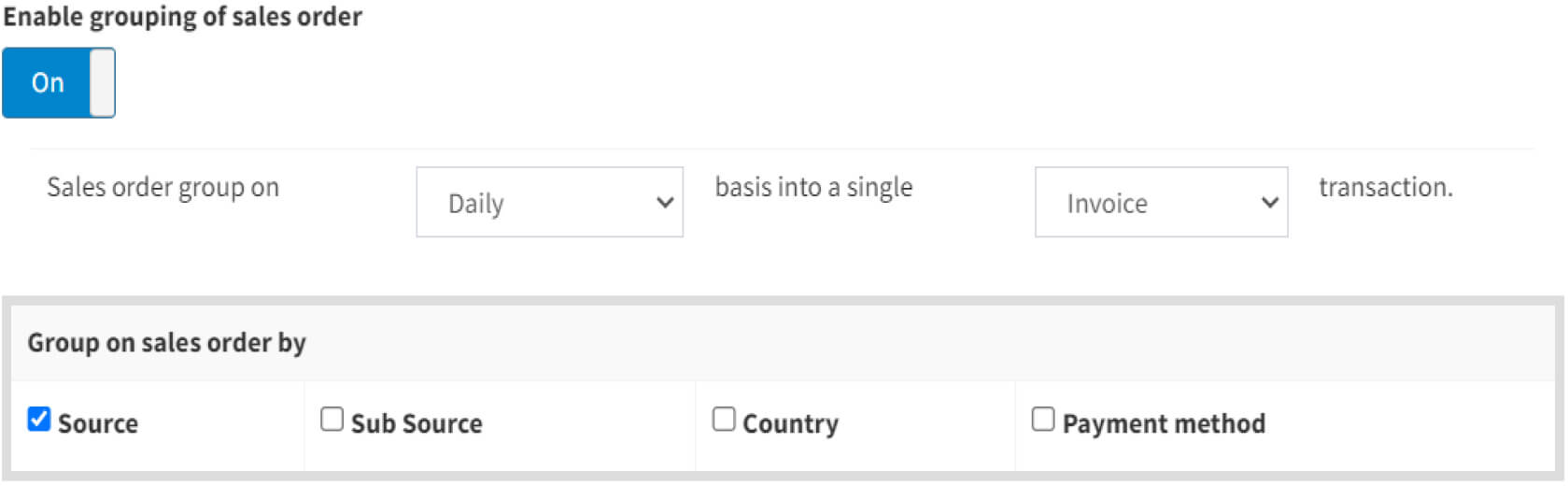(Showing Enable grouping of sales order in configuration.)
## Module 4 – Purchase configuration
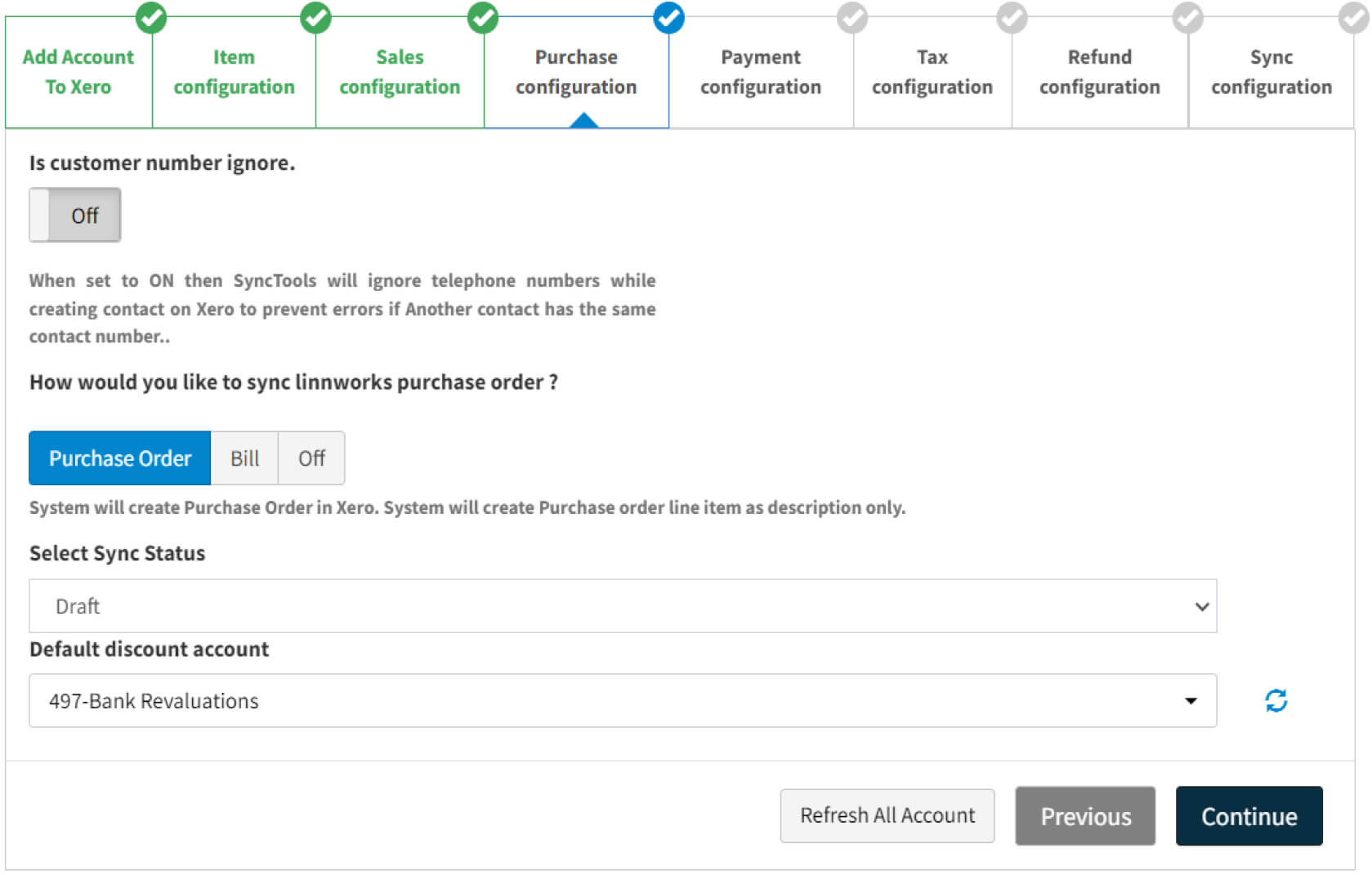(Showing the purchase configuration screen with all settings.)
-
### Is the customer number ignored
.
- It should be ON for every user.
-
### How Would You Like to Sync Linnworks Purchase Orders?
- Do you want to sync Linnworks purchase orders – If no, Please select off.
- If yes, Select Purchase Order if It should be created as Purchase order in Xero and Select Bill if It should be created as Bill in Xero.
- Only “Delivered purchase orders” from Linnworks will be synced.
(Showing the Bill configuration selection with xero bill refrance configuration.)
-
### Xero Bill Reference Number
- Here you can configure the xero bill reference number. This will be used for filltering our customers individual Bills and seprate them with two diffrent and unique options one is linnworks PO number and second is linnworks supplier reference number of the PO.
-
### Select Sync Status
- If you are syncing Purchase orders, you can select what should be the invoice status of the created Purchase orders/ Bills -1) Drafts 2) Awaiting approval 3) Awaiting payments
-
### Default Discount Account
- Please select the account in which discounts should be mapped if any.
- Continue
## Module 5 – Payment Configuration
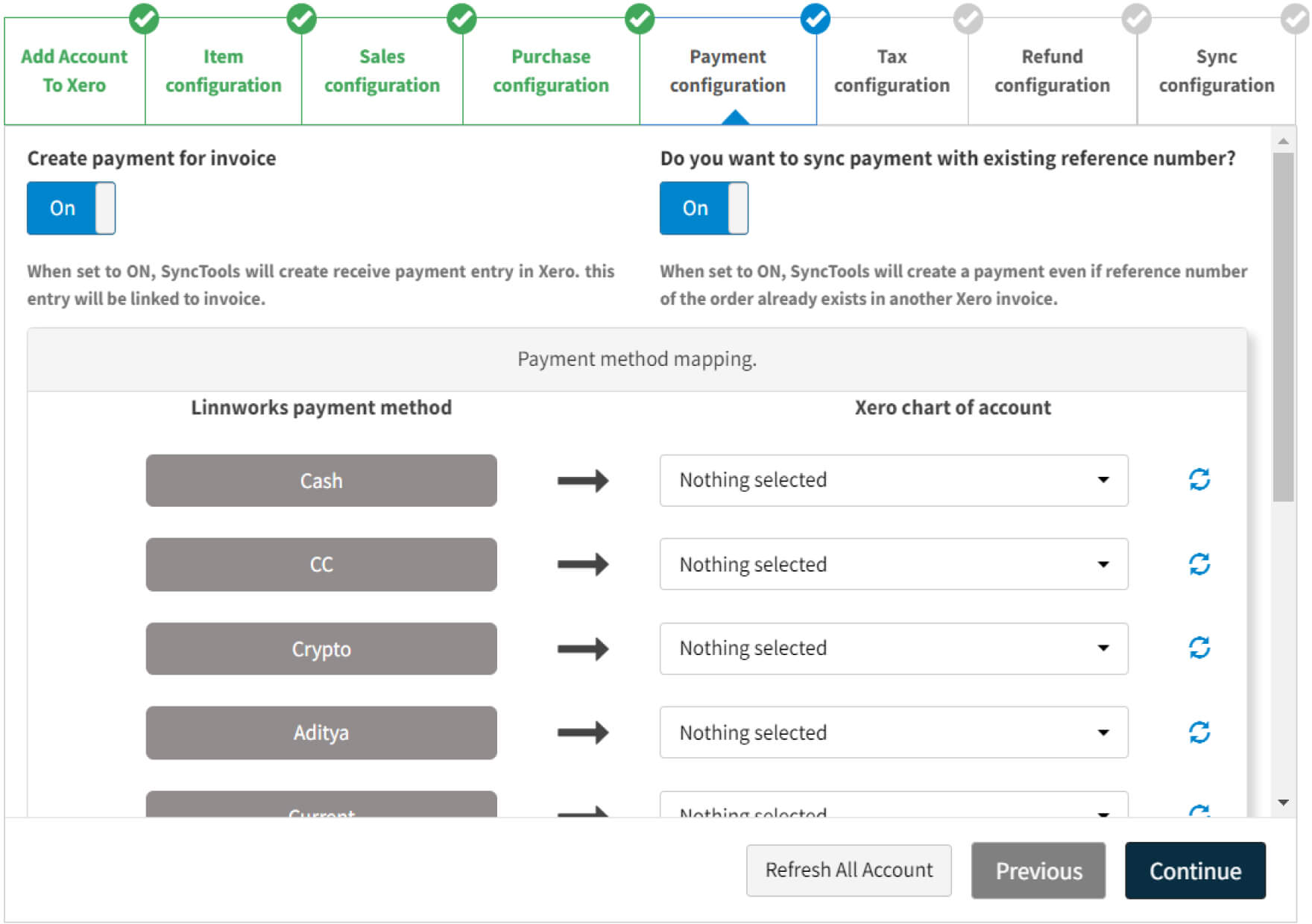(Showing the payment configuration screen with it’s all settings.)
-
### Create Payment for Invoice
- Turn it OFF, if you do not want to sync payments of Linnworks orders, All the invoices will be created UNPAID without any payment.
- Turn it ON, if you want to sync payments of Linnworks orders, All the paid orders will be created as PAID invoices with payment amount, date and reference number.
-
### Do you want to sync payment with existing reference number?
- Keep it OFF, if reference number of the order already exists in another Xero invoice. then synctools will not able to create new payment.
- Keep it ON, if reference number of the order already exists in another Xero invoice. then also SyncTools will create a payment.
-
### Payment Method Mapping
- Select the chart of accounts in front of Linnworks payment methods.
- Every payment from Linnworks will be mapped in the Xero chart of the account which is mapped with that payment method.
- Please contact the support team if there is any confusion, so that we can prevent the back and forth.
-
### Channel Wise Payment Reference Number Configuration
- Please select what should be the payment reference number of the payment if you want to sync payments too.
- Select the date for which payment should be made.
- Select Received date if you want payment created on the date order was received in Linnworks.
- Select Processed date if you want payment created on the date order was processed in Linnworks.
- Continue
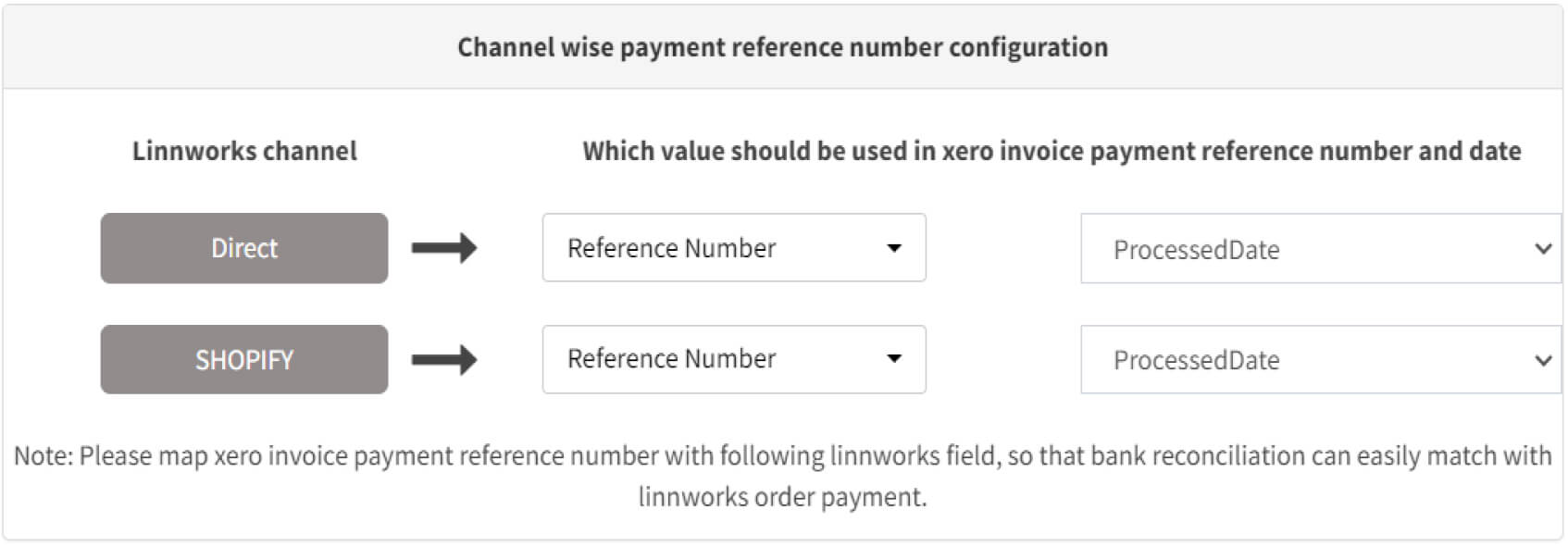(Showing channel wise payment reference number in payment configuration.)
## Module 6 – Tax Configuration
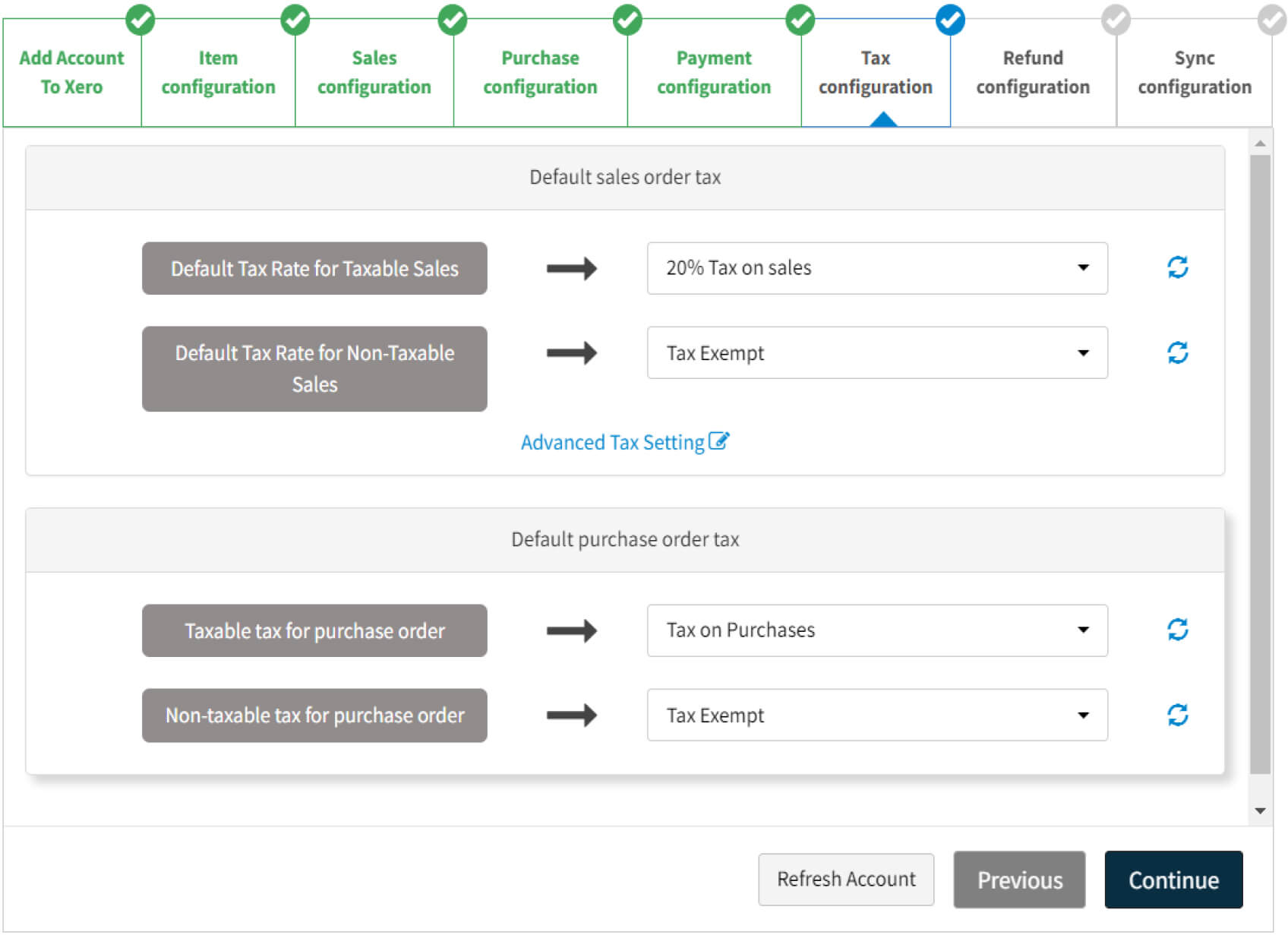(Showing the Tax configuration screen with it’s all settings.)
-
### Default Sales Order Tax
- Please select what should be the default \[Taxable and NonTaxable\] tax rate on all the orders. (if all the orders should have one same tax rate)
- Please click on the advance tax setting if you have more than one tax rate to work with.
-
### Advance Tax Setting
- Please involve the SyncTools support team while setting up the Advance tax setting if any doubts.
- You can refer to PPT attached under **Configuration and setting up the SyncTools account** section of this document for better understanding.
-
### Default Purchase Order Tax
- Please select what should be the default \[Taxable and NonTaxable\] tax rate on all the Purchase orders.
- We do not have advance tax settings for Purchase orders if you have more than one tax rate to work with.
- Continue
## Module 7 Refund Synchronization
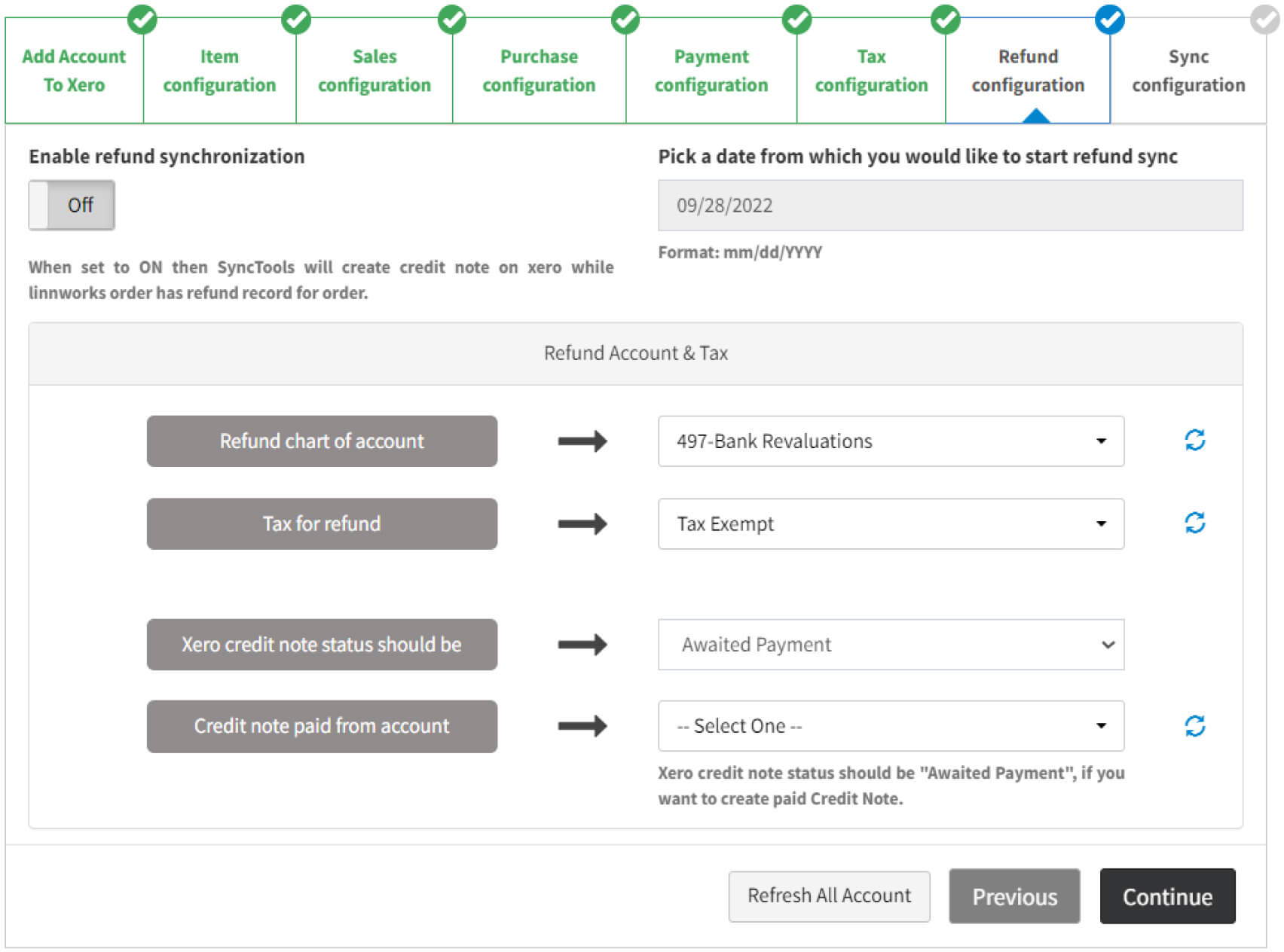(Showing the Refund configuration screen with it’s all settings.)
-
### Enable Refund Synchronization
- Keep this OFF if you don’t want to sync refunds in Xero.
- Keep this ON if you want to sync refunds in Xero.
-
### Pick a date from which you would like to start refund sync
- SyncTools will download all the refunds from the selected date in Linnworks.
-
### Refund Account & Tax
- Select **Refund Chart of account** in which the refunds will be booked.
- Select **Tax for Refunds:**
- Please select what should be the default \[Taxable and NonTaxable\] tax rate on all the refunds. (if all the refunds should have one same tax)
- Please click on the advance tax setting from the connections page if you have more than one tax rate to work with
-
### Select Xero Credit Note Status
- If you’re syncing refunds, you can select what should be the Credit Note status of the created Refunds – 1) Drafts 2)Awaiting approval 3) Awaiting payments
-
### Select Credit Note Paid From Account
- Please select the account in which Credit Note should be paid from if any.
**Note:** Xero credit note status should be “Awaited Payment”, if you want to create a paid Credit Note.
- Continue
## Module 8 Sync Synchronization
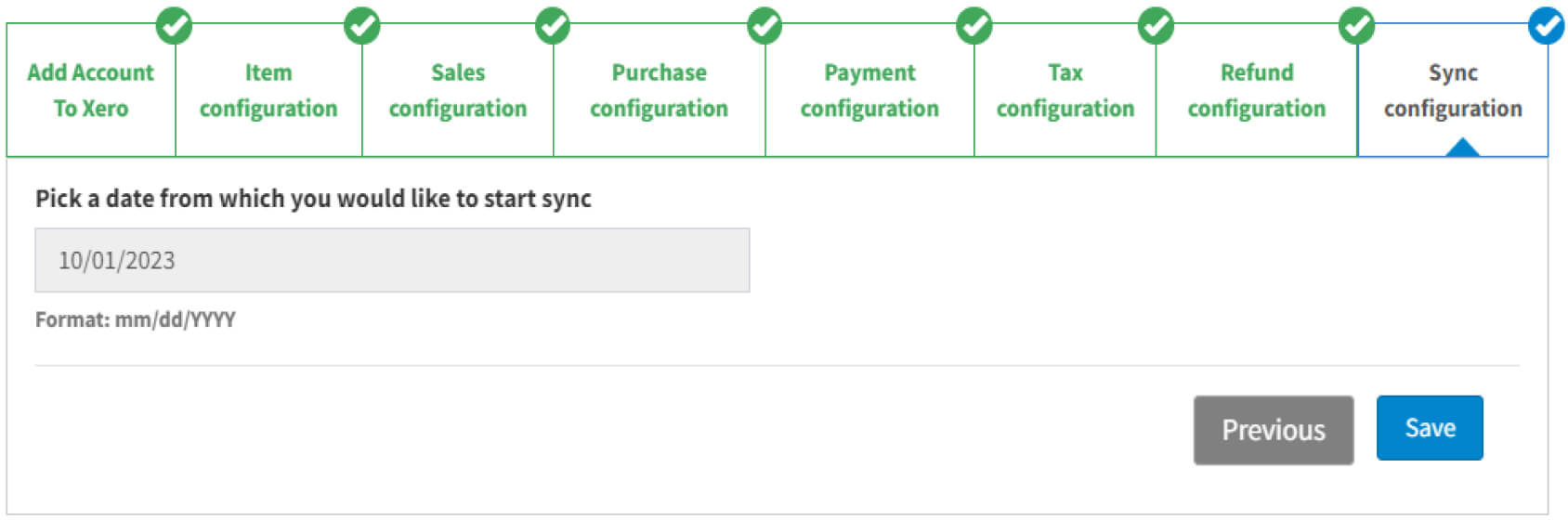- **Pick a date from which you would like to start sync**
- SyncTools will download all the orders from the selected date in Linnworks.
- Save
**Note :** \*Configuration settings will be saved only if the Save button of Module 8 is clicked before closing the pop up.
## Testing of few orders
- Make sure the button on the rightest side is at OFF. (It is for automatic sync)
- First You should test a few orders manually so that we can prevent back and forth.
- Go to Sync Log
- Click on the Download button
- Select Sales so that sales order can be downloaded
- Once orders are downloaded, click on the Show button under the Sync History column.
- Click on Retry Upload.
- Order will be Uploaded and you will get the link of created Xero invoice under #ToRecord Column, click on that.
- Review the Invoice and compare with Linnworks order.
- If everything looks fine, Please go to settings > Connections and click ON the automatic sync button.
- Automatic sync will start in some minutes.
- If any problem or doubt is occured, please contact the SyncTools support team.
## Sync Report Email
- Everyday you will receive a sync report email which will include
- Total orders downloaded
- Total orders uploaded
- Total orders not uploaded (If any) – with error description
- If you want to receive such email on any other email address than the registered email address – Please go to settings > Email notification and add the email address.
| Sales orders | | Xero invoices |
|---|---|---|
| Order no. | | Invoice no. |
| Reference no. | | Invoice reference no. in Xero |
| Shipping/ billing address | | Contact info |
| Customer information | | Contact info |
| Line items | | Line items |
| Unit price | | Unit price |
| Tax rate | | Tax rate |
| Shipping total | | Lineitem – shipping as service |
| Total amount | | \[Subtotal + Total Vat\] = total amount |
| Order payment status paid | | Invoice payment status paid |
| Order payment status unpaid | | Invoice payment status – \[draft/ awaiting payment/ awaiting approval\] |
| SKU codes of products | | Item codes (\* if needed) |
| Source – subsource | | Xero tracking category |
## Leave a review
Once you have used system for a month or two, please leave a review for us in Linnworks,
- Linnworks > Apps > Application store > Search Xero Connector > Click on the manage button of our Xero connector > Scroll down and you’ll see the review section
- Refer this **video**
## FAQs
- **Do you sync inventory?**
- SyncTools helps with Sales orders and Purchase orders. We do not specifically sync inventory as and when it changes.
- **How do you manage Resends/ Refund?**
- Yes,SyncTools handles refunds from Linnworks, automatically synchronize them and creates a Credit Note in Xero.
- **How Long Does It Take To Get Setup & To Start Syncing?**
- The Full Process Normally Takes 15-30 Minutes In Order To Get Your Account Syncing.
- **Do You charge for onboarding?**
- OnBoarding is totally free for SyncTools.io
- **Do You Store My Credit Card Information?**
- Absolutely Not! Your credit card information is stored on our service providers (Authorize.Net) server which is tested hourly for possible breaches. Also your information is ALWAYS in compliance with PCI.
- **Is There A Contract With SyncTools?**
- No. You can cancel and restart your plan as many times as you wish by simply logging into your system portal and cancelling or subscribing to a plan.
- **Once My Account Is Setup; How Long Does It Take For My Data To Transfer? (i.e. Sales**
**Orders, Purchase Orders)**
- We normally suggest giving the system 1 hour to sync 10,000 items. However in most cases it will be complete within 15 minutes. This time may also be affected during our peak times on the server.
## SyncTools team Contact details
Email:
Telephone [+44 7380328797](tel:+44%207380328797)
USA number [+1 323 672 3738](tel:%20+1%20323%20672%203738)
---
_View the original post at: [https://synctools.ai/docs/linnworks-xero-integration/basic-steps-to-install-synctools-app-in-linnworks-to-xero](https://synctools.ai/docs/linnworks-xero-integration/basic-steps-to-install-synctools-app-in-linnworks-to-xero)_
_Served as markdown by [Third Audience](https://github.com/third-audience) v3.5.3_
_Generated: 2026-04-09 05:32:26 UTC_