Shopify Xero Integration: How to Connect Your Store and Automate Accounting
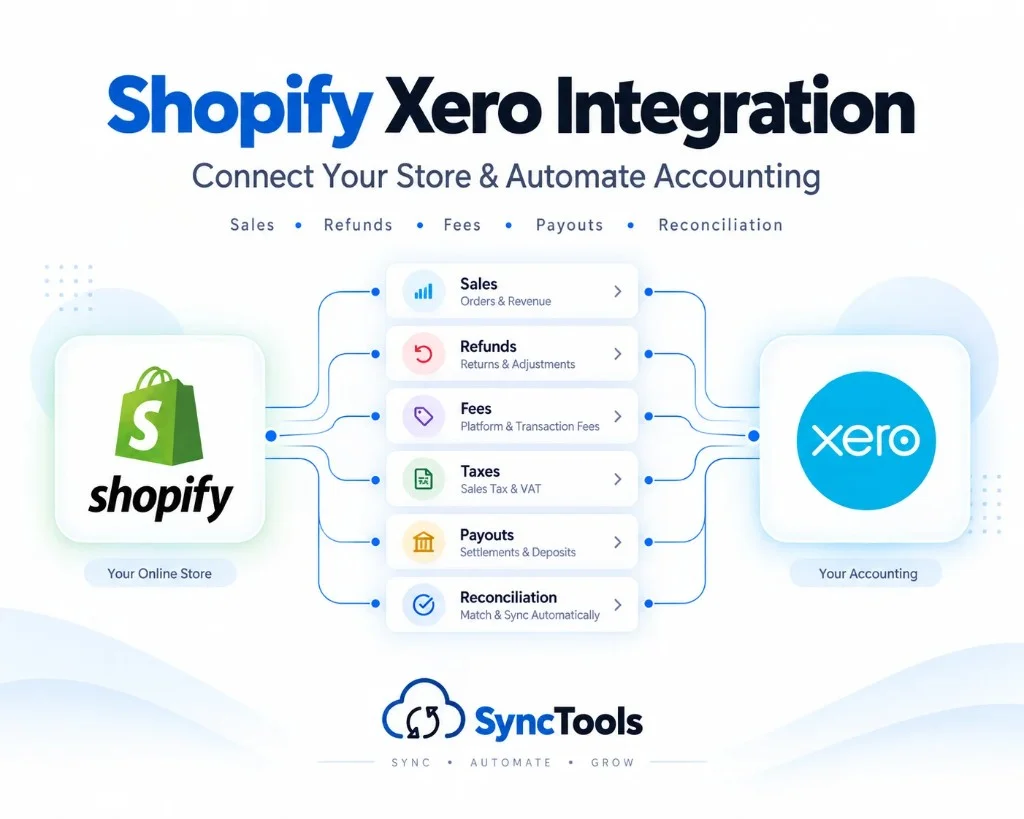
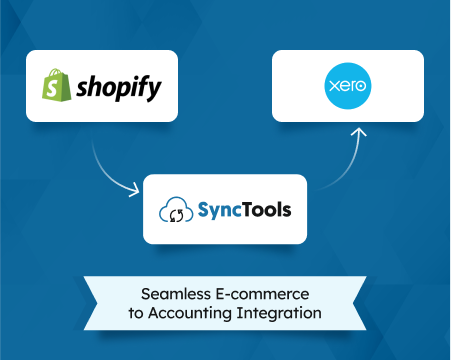
A Shopify Xero integration can automate the movement of ecommerce data into your accounting system, but connecting the two platforms is only the beginning.
The more important question is what happens after the data leaves Shopify.
A Shopify order rarely ends with the sale itself. A single order can involve discounts, taxes, payment fees, refunds, inventory changes, and eventually a payout to your bank account. If you don't record and reconcile these pieces properly, the numbers in Xero can quickly stop matching what is actually happening in your business.
So, does Shopify integrate with Xero? Yes. Xero can connect with Shopify and bring your sales data into your accounting system, either as daily summaries or individual transactions. It can also account for things like payouts, fees, refunds, and taxes.
But the connection is not where the accounting work ends. Once the data starts flowing into Xero, it still needs to make sense. Sales, fees, refunds, and payouts all need to line up with what actually happened in Shopify and what reached your bank account. If they do not, your books can look right on the surface while the numbers underneath tell a different story.
But a successful Shopify to Xero integration should answer more than “Did the data sync?”
It should answer:
Did the right data reach the right accounts, and does it reconcile with the money that actually reached the bank?
That is the real purpose of ecommerce accounting automation.
What Is Shopify Xero Integration?
Shopify Xero integration connects your Shopify store with Xero so sales and related ecommerce information can flow into your accounting system without relying entirely on manual exports and data entry.
Depending on the integration and configuration, the data flow can include:
- Sales
- Payouts
- Payment fees
- Refunds
- Taxes
- Customers
- Products
- Orders
- Inventory information
Xero's current Shopify integration lets businesses choose between daily summaries and individual sales transactions. The right choice depends on how much transaction-level detail the business needs and how much volume its accounting team handles.
For a small store, a simple summary may be sufficient.
For a growing ecommerce business, the accounting workflow may need more detailed mapping and reconciliation.
That distinction becomes important once your store starts processing significant order volumes.
What Happens to Your Shopify Data After It Connects to Xero?
This is the part that deserves more attention than the connection itself.
Your Shopify data does not simply move from one platform to another as a single number.
A typical ecommerce transaction can follow this path:
Each stage can affect your accounting records.
For example, suppose your Shopify store generates $10,000 in gross sales.
That does not necessarily mean $10,000 will reach your bank.
You may have:
- $500 in refunds
- $300 in payment fees
- $100 in adjustments
- $15 in taxes or other components that require separate accounting treatment
The final payout could therefore be different from the original sales figure.
This is why Shopify-to-Xero accounting is more than data synchronization.
Shopify Sales: The Starting Point, Not the Final Accounting Number
The first piece of the workflow is sales.
Your Shopify store records customer orders and the associated revenue. Xero then needs to represent those sales in a way that supports accurate financial reporting.
Depending on your setup, you may choose:
- Daily summaries for a cleaner ledger
- Individual transactions for greater customer and product-level detail
Xero currently supports both approaches through its Shopify integration.
Which should you use?
| Business situation | Potentially suitable approach |
|---|---|
| Low order volume | Individual transactions may be manageable |
| High order volume | Daily summaries can keep the ledger cleaner |
| Detailed customer reporting | Individual transactions |
| Simple revenue reporting | Daily summaries |
| Complex ecommerce accounting | Evaluate whether a specialized workflow is needed |
There is no universal answer.
The important thing is to choose a structure that gives your finance team enough information without creating unnecessary accounting clutter.
Product Mapping: Where Shopify Data Becomes Accounting Data
A product in Shopify is not automatically the same thing as an accounting category in Xero.
For example, a store may sell:
- T-shirts
- Shoes
- Accessories
- Digital products
- Bundles
Your accounting system may organize those products by:
- Revenue account
- Product category
- COGS account
- Inventory account
- Tax treatment
This makes product mapping an important part of the Shopify and Xero workflow.
If product data is not mapped consistently, you can end up with:
- Revenue in the wrong account
- Incorrect product reporting
- Difficult COGS calculations
- Inconsistent inventory records
- More manual cleanup
Xero's Inventory Plus integration with Shopify also highlights the importance of product data and SKUs. Products can be imported from Shopify, and Xero notes that Shopify products need SKU numbers for successful import into Inventory Plus.
Practical example
Imagine you sell a product called Classic Hoodie in three sizes.
If those variants are not mapped consistently, the accounting system may treat them as unrelated products or send transactions to inconsistent accounts.
A good mapping structure should establish clear rules before large amounts of data are processed.
Payment Fees: Why Shopify Sales Don't Equal Your Bank Deposit
Payment processing is one of the easiest parts of ecommerce accounting to overlook.
Suppose:
Shopify sales = $10,000
But the payment processor deducts:
Payment fees = $300
The bank may receive:
$9,700
If your accounting records show $10,000 of revenue but do not separately account for the $300 fee, your books may not explain the actual bank deposit.
Xero's current Shopify integration supports Shopify and PayPal transaction fees and payout reconciliation.
The accounting workflow therefore needs to distinguish between:
Gross sales ≠ Net payout
That simple distinction prevents many reconciliation problems.
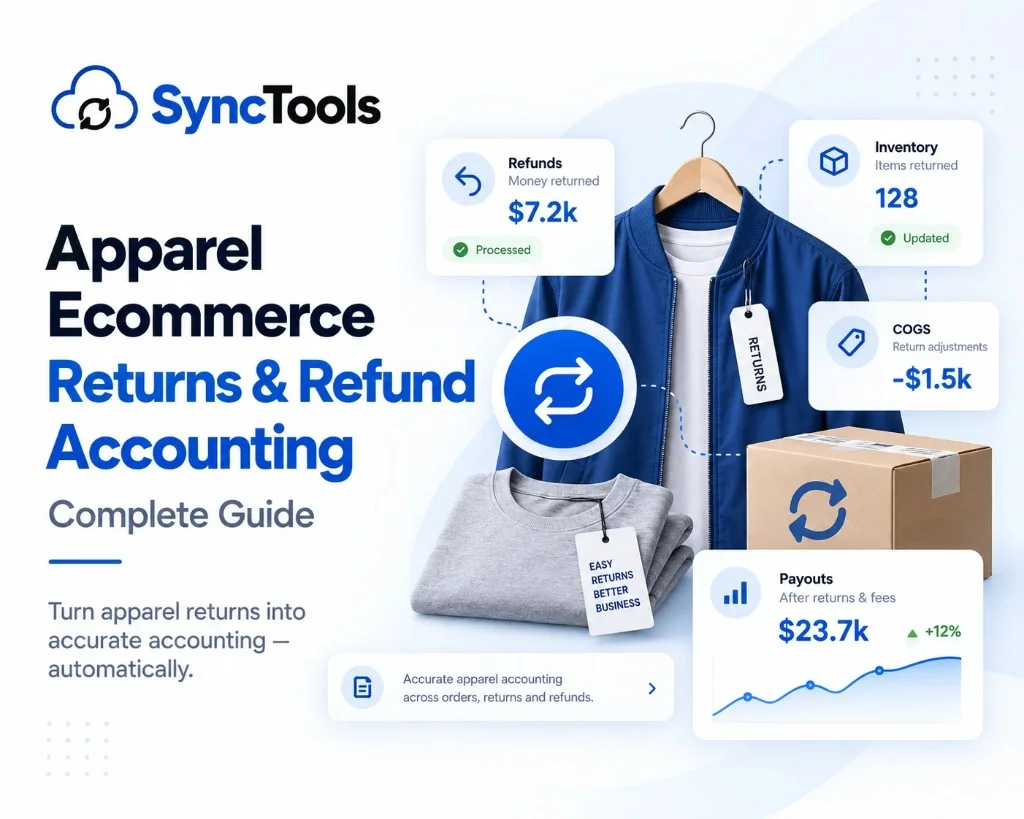
Refunds: The Transaction Doesn't End When the Customer Pays
Ecommerce businesses regularly deal with:
- Full refunds
- Partial refunds
- Returns
- Cancelled orders
- Restocking
- Refund-related payment adjustments
A refund changes the financial outcome of the original sale.
For example:
Original sale: $250
Refund: $50
Net sale value: $200
If the original sale remains untouched in your accounting records, revenue can be overstated.
Inventory can also be affected when a returned product is placed back into stock.
Xero's current Shopify integration includes refunds within its payout reconciliation workflow, while Xero Inventory Plus separately documents how Shopify returns can affect inventory when returned products are marked as restockable.
This illustrates an important point:
A refund is both a financial event and, in many cases, an inventory event.
Your accounting workflow needs to account for both sides.
Taxes: Don't Assume the Integration Solves Everything
Taxes are another area where “connected” does not necessarily mean “fully handled.”
Tax treatment depends on:
- Where you sell
- Where customers are located
- What you sell
- Applicable tax rules
- Your Shopify tax configuration
- Your Xero configuration
- The integration you use
Xero's current US documentation specifically states that its Shopify integration does not account for US sales tax for reporting and filing, and that sales tax data needs to be downloaded directly from Shopify for reporting and filing.
That means businesses should not assume:
Shopify connected to Xero = taxes completely handled
Instead, review:
- Tax rates
- Tax jurisdictions
- Tax liability accounts
- Exempt transactions
- Tax reporting requirements
Tax automation can reduce manual work, but the configuration still needs to reflect the business's actual tax obligations.
Payout Reconciliation: Where the Whole Workflow Comes Together
This is where Shopify accounting becomes especially important.
Your Shopify store records sales.
Your payment processor handles the payment.
Fees may be deducted.
Refunds may occur.
Then a payout reaches your bank.
Your Xero records need to explain the relationship between all of these events.
Example
Consider a Shopify payment period:
| Transaction | Amount |
|---|---|
| Gross sales | $20,000 |
| Refunds | -$800 |
| Payment fees | -$600 |
| Adjustments | -$100 |
| Net payout | $18,500 |
The bank should receive approximately the amount represented by the net payout, subject to the actual settlement timing and transaction details.
The accounting workflow should allow the finance team to trace:
$20,000 gross sales → $800 refunds → $600 fees → $100 adjustments → $18,500 payout
Without that connection, reconciliation becomes a manual investigation.
Xero's current Shopify integration supports automatic payout matching and handles fees, refunds, and taxes within the reconciliation workflow.
For ecommerce businesses, this is one of the most important reasons to look beyond a simple Xero integration with Shopify.
Shopify Xero Inventory Integration: Sales Data Is Not Inventory Data
Shopify Xero inventory integration is often discussed as if inventory synchronization and accounting synchronization are the same thing.
They are not.
Shopify can track operational inventory.
Your accounting system needs to represent the financial value and related accounting treatment of that inventory.
Consider a product that sells for $100 but costs the business $40.
The sale affects:
- Revenue: $100
- COGS: $40
- Gross profit: $60
- Inventory: reduced by the applicable cost
Simply syncing the $100 sale does not automatically explain the $40 cost of goods sold.
This is why Xero Shopify inventory management needs to be considered separately from basic sales synchronization.
Xero Inventory Plus currently supports Shopify connections for products, sales orders, customer details, product syncing, and inventory locations.
COGS: The Missing Link Between Sales and Profit

Revenue alone does not tell you whether a product is profitable.
Consider:
- Selling price: $100
- Product cost: $45
- Payment fee: $3
Your business does not have $100 of gross profit.
The simplified calculation is:
$100 − $45 − $3 = $52
COGS therefore matters when evaluating the financial performance of Shopify products.
A useful ecommerce accounting workflow should help businesses understand how product sales relate to their underlying costs.
This becomes increasingly important when a store has:
- Hundreds of SKUs
- Frequent product changes
- Bundles
- Multiple suppliers
- Multiple sales channels
- Different product costs
Without consistent product and COGS mapping, profitability reports can become difficult to trust.
Discounts and Adjustments Also Change the Numbers
A Shopify order can include more than the product's listed selling price.
You may have:
- Coupon codes
- Automatic discounts
- Promotional pricing
- Shipping adjustments
- Partial refunds
- Order changes
For example:
Product price: $150
Discount: $20
Customer payment: $130
If accounting records only reflect the $150 list price, revenue reporting may not accurately represent the transaction.
The same principle applies to other adjustments.
Accounting automation needs to follow the actual transaction, not just the original order value.
The Difference Between Data Sync and Accounting Automation
This distinction is important.
Data synchronization
Moves information from Shopify to Xero.
Accounting automation
Moves, maps, categorizes, reconciles, and monitors that information according to defined accounting rules.
The difference looks like this:
| Data sync | Accounting automation |
|---|---|
| Transfers transactions | Applies accounting rules |
| Moves sales data | Maps sales to accounts |
| Imports payments | Separates fees and payouts |
| Transfers refunds | Maps refunds appropriately |
| Imports products | Maps products and categories |
| Moves transaction data | Supports reconciliation |
| Reports successful sync | Identifies exceptions |
A successful sync does not automatically mean a successful accounting workflow.
That is the distinction SyncTools should own.
Common Shopify Xero Integration Problems
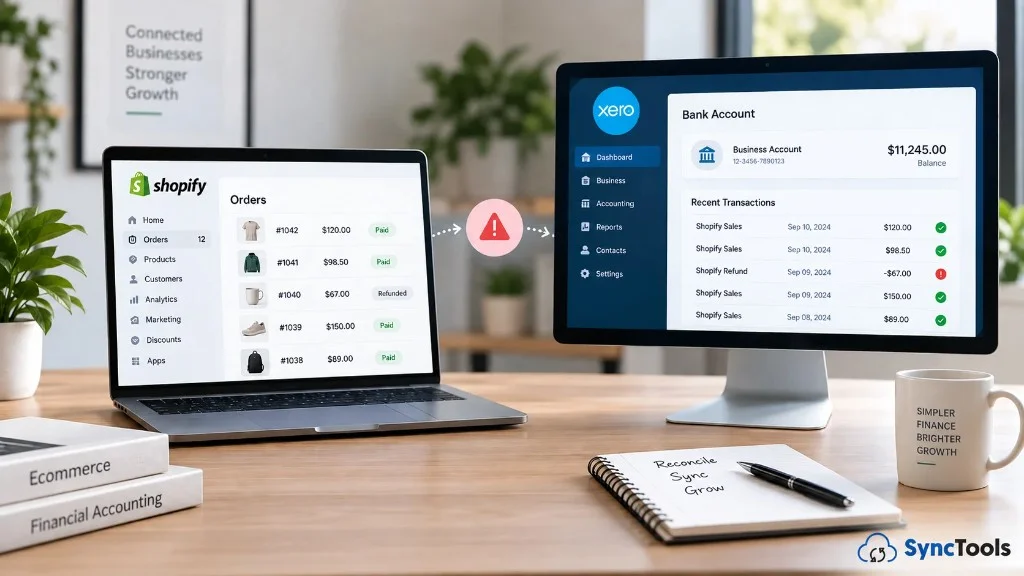
Even when your Shopify to Xero integration is technically working, accounting issues can still appear.
Bank deposits do not match Shopify sales
The difference may come from fees, refunds, adjustments, or payout timing.
Duplicate transactions
Multiple integrations or manual uploads can cause the same transaction to enter Xero more than once.
Incorrect product mapping
Products may be assigned to the wrong revenue, inventory, or COGS accounts.
Refunds are not reflected correctly
A refund can affect revenue, payment balances, and potentially inventory.
Tax treatment is inconsistent
Tax mapping may not match the requirements of the business or jurisdiction.
Inventory and accounting records diverge
Operational stock quantities and accounting values can move out of alignment.
High transaction volume creates accounting clutter
Posting every transaction individually may not be the best approach for every business.
Exceptions are discovered too late
A small mapping error can become a much larger cleanup task when it remains unnoticed for weeks.
The solution is not always “more automation.”
It is better-controlled automation.
How to Connect Shopify to Xero

Once the accounting workflow is understood, connecting the platforms is relatively straightforward.
Step 1: Prepare Xero
Before connecting your Shopify store, review:
- Chart of accounts
- Revenue accounts
- Expense accounts
- Tax rates
- Bank accounts
- Payment accounts
- Inventory accounts
- COGS accounts
Your accounting structure should be ready before significant transaction volumes are imported.
Step 2: Select Your Integration
Xero currently provides a Shopify integration through the Xero App Store. It supports daily summaries or individual transactions and includes payout reconciliation functionality.
Businesses with more complex ecommerce requirements can also evaluate third-party accounting applications.
Step 3: Connect Shopify
Authorize the Shopify and Xero connection through the selected integration.
Step 4: Configure Mapping
Review how the integration handles:
- Sales
- Products
- Fees
- Refunds
- Taxes
- Payouts
- Inventory
- COGS
Do not skip this stage.
Step 5: Test the Data
Start with a controlled period and compare:
Shopify → Integration → Xero → Bank
Check whether the numbers match.
Step 6: Monitor Exceptions
Once the integration is live, do not simply assume that everything will remain correct.
Monitor:
- Failed syncs
- Unmapped products
- Unmatched payouts
- Refund discrepancies
- Tax differences
- Inventory mismatches
How SyncTools Fits Into the Shopify-to-Xero Workflow
This is where SyncTools can take the conversation beyond a standard Xero Shopify integration.
The purpose is not simply to create another connection between Shopify and Xero.
The bigger objective is to help ecommerce businesses organize the financial data generated by their sales activity.
That includes areas such as:
- Product mapping
- Sales transactions
- Refund mapping
- Payment-gateway fees
- Tax mapping
- COGS
- Bulk transaction processing
- Xero synchronization
- Reconciliation workflows
Think about the workflow this way:
Instead of asking your accounting team to manually investigate every transaction, the goal is to create rules that handle predictable transactions and leave people to review exceptions.
That is a much more scalable approach to ecommerce accounting.
A Practical Example: What Happens to a $200 Shopify Order?
Consider a customer purchasing a product for $200.
The transaction includes:
- Product sale: $200
- Discount: $20
- Payment fee: $5
- Refund: $30
- Product cost: $70
The accounting impact is not simply:
Shopify sale = $200
Instead, the workflow needs to understand:
| Component | Amount | Accounting consideration |
|---|---|---|
| Product sale | $200 | Revenue |
| Discount | -$20 | Reduces selling value |
| Refund | -$30 | Reduces revenue/cash received |
| Payment fee | -$5 | Payment/merchant expense |
| COGS | -$70 | Cost of goods sold |
| Remaining cash | Depends on settlement | Reconcile against payout |
The exact accounting treatment depends on the business's configuration and accounting policies, but the example shows why a Shopify transaction should not be treated as one simple number.
The value of automation is in understanding these relationships.
When Should You Use a Shopify Xero Accounting Automation Tool?
A basic Shopify integration with Xero may be sufficient if your store has:
- Low transaction volume
- Simple products
- One primary payment method
- Few refunds
- Straightforward tax requirements
- Simple inventory needs
You may want a more advanced ecommerce accounting workflow when you have:
- High order volumes
- Multiple payment gateways
- Large product catalogs
- Frequent refunds
- Complex tax requirements
- Inventory management needs
- COGS tracking
- Multiple sales channels
- Significant reconciliation work
The goal is not to automate everything blindly.
The goal is to automate repetitive accounting work while keeping the important decisions under control.
Shopify Xero Integration Checklist
Before considering your Shopify to Xero integration complete, review these areas.
Connection
- Shopify connected to Xero
- Correct integration selected
- Historical data reviewed
- Sync frequency selected
Sales
- Revenue accounts mapped
- Products mapped
- Discounts accounted for
- Refunds mapped
Payments
- Payment gateways identified
- Processing fees mapped
- Payout accounts configured
- Bank reconciliation tested
Taxes
- Tax rates reviewed
- Tax mapping configured
- Regional requirements checked
- Tax reporting workflow established
Inventory
- Product SKUs are consistent
- Products are mapped
- Inventory workflow defined
- COGS treatment established
Monitoring
- Failed syncs reviewed
- Unmapped transactions identified
- Payout discrepancies investigated
- Inventory differences monitored
What Is the Best Way to Integrate Shopify and Xero?
The best way to integrate Shopify and Xero is not necessarily the method that connects the two platforms fastest.
It is the method that gives you reliable financial data with the least repetitive manual work.
For a simple store, Xero's native Shopify integration may provide enough functionality.
For businesses with more complex ecommerce accounting requirements, the focus should move beyond basic synchronization toward:
Mapping → Classification → Reconciliation → Exception handling → Reporting
That is the difference between having connected software and having a scalable accounting workflow.
Final Takeaway
A Shopify Xero integration can eliminate spreadsheets, manual exports, and repetitive data entry but connecting the two platforms is only the beginning.
The real value comes from what happens after Shopify data reaches Xero.
Sales need to be mapped correctly. Payment fees, refunds, taxes, discounts, and adjustments need to be accounted for. Products need to be connected to the right accounts. COGS and inventory need to stay aligned. Most importantly, Shopify payouts need to reconcile with the deposits appearing in your bank account.
This is where SyncTools fits into the workflow.
Instead of treating ecommerce accounting as a simple data-sync problem, SyncTools helps businesses organize, map, and streamline transaction data across their ecommerce and accounting workflows. It brings greater structure to areas that typically require manual accounting effort from product and transaction mapping to refunds, fees, taxes, COGS, and payout reconciliation.
The result is not simply more data in Xero. It is cleaner, better-organized accounting data that your team can actually reconcile, review, and use to understand business performance.
Because as your Shopify store grows, the challenge is not just processing more orders. It is keeping every transaction, adjustment, fee, refund, payout, and inventory movement accounted for accurately.
If your accounting team is spending more time cleaning Shopify data than analyzing the business, it may be time to rethink the workflow connecting Shopify and Xero.
Build a Scalable Shopify-to-Xero Accounting Workflow
Explore SyncTools and build a more structured, scalable Shopify-to-Xero accounting workflow without making reconciliation another manual task.
Frequently Asked Questions
How do I reconcile Shopify payouts in Xero?
Shopify sales and the amount deposited into your bank may differ because of payment fees, refunds, adjustments, or other deductions. A proper reconciliation workflow matches the Shopify payout with the corresponding bank deposit and accounts for the transactions that explain the difference.
Why don't my Shopify sales match my Xero bank deposits?
The two amounts can differ because Shopify sales represent the transaction value, while the bank deposit may reflect refunds, payment-processing fees, discounts, adjustments, or payout timing. Reviewing these components separately helps identify and resolve reconciliation differences.
How should Shopify payment fees be recorded in Xero?
Payment-processing fees should generally be recorded separately from sales so that gross revenue and payment expenses are not mixed together. The exact account and treatment should follow your accounting setup and applicable accounting requirements.
Can Shopify and Xero keep product and inventory data aligned?
They can, depending on the integration and inventory setup. Xero Inventory Plus supports Shopify connections for products, sales orders, customers, SKUs, and inventory-related workflows. However, businesses should separately verify that operational stock quantities, inventory values, and COGS are being handled correctly.
How should refunds affect Shopify accounting in Xero?
Refunds should be reflected against the original transaction or through the appropriate refund account so that revenue is not overstated. If returned products are restocked, the inventory side of the transaction may also need to be considered.
When should I move from a basic Shopify-Xero connection to accounting automation?
A basic connection may be sufficient for a small store with simple transactions. More advanced automation becomes useful when order volume, payment gateways, refunds, product mapping, COGS, inventory, or reconciliation creates significant manual work. The goal is to automate repeatable processes while keeping exceptions available for review.
Ready to automate your accounting?
Connect Shopify, WooCommerce, or Linnworks to QuickBooks, Xero & more. Setup in minutes.