
Connect to Linnworks
How to Connect Your Linnworks Account to SyncTools
Congratulations on setting up your SyncTools account! ? Now let’s walk you through connecting your Linnworks Account to automate your accounting workflows with QuickBooks or Xero.
Who Can Connect Linnworks?
Only the owner of the Linnworks account has permission to authorize the connection with SyncTools.
Step-by-Step Guide to Connect Linnworks
1️⃣ Go to Connections in SyncTools
-
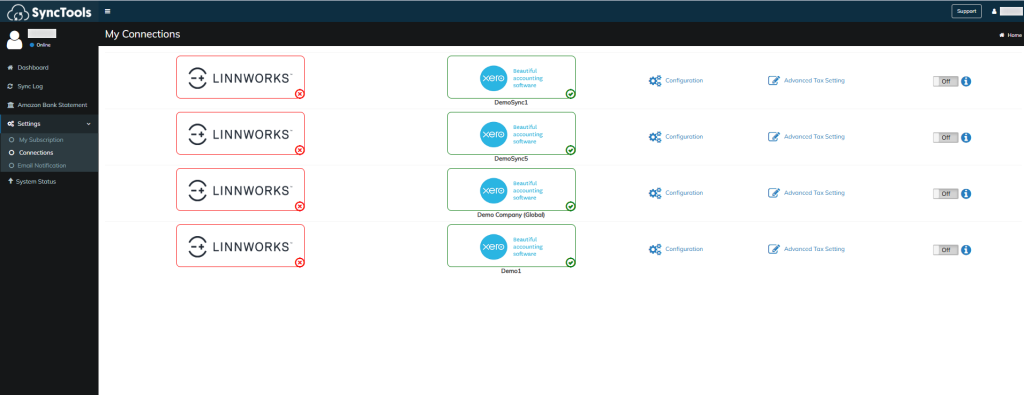
From the SyncTools dashboard, click on:Settings > Connections
-
Then, click on the Linnworks option to begin setup.
2️⃣ Authenticate Your Linnworks Account
-
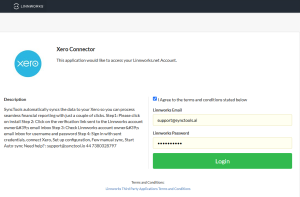
Click on the Login button.
-
Enter your Linnworks credentials and sign in securely.
3️⃣ Choose the Right Linnworks Version
-
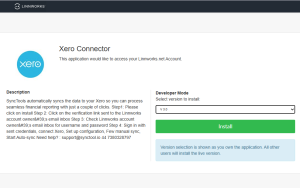
Select the appropriate version of Linnworks.
-
You’ll be redirected to Linnworks to approve the connection.
⚠️ Important Notes
-
Make sure you’re the account owner of Linnworks. If not, the connection will fail.
-
Always choose the correct version of Linnworks for seamless integration.
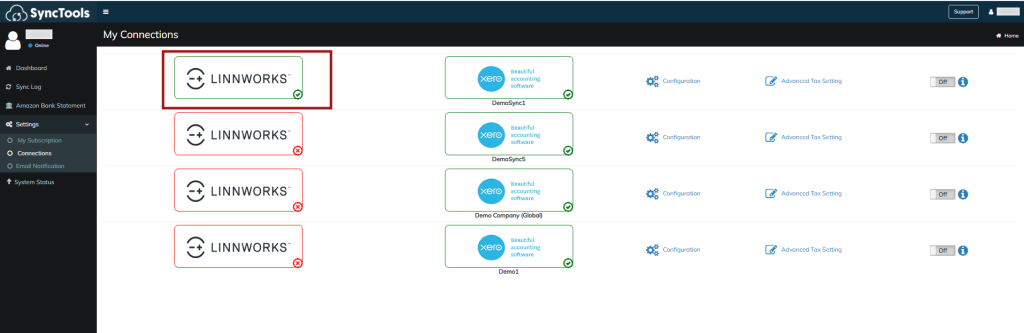
Once authenticated, you’ll be redirected back to SyncTools. In the Connections tab, Linnworks will now show as:Connected ✅
Was this article helpful?