Magento QuickBooks Integration: How to Sync Adobe Commerce with QuickBooks Online (2026)
Connect Magento (Adobe Commerce) to QuickBooks Online and eliminate manual bookkeeping. This guide covers every integration method, account mapping for complex Magento order structures, tax handling, and step-by-step setup using SyncTools.
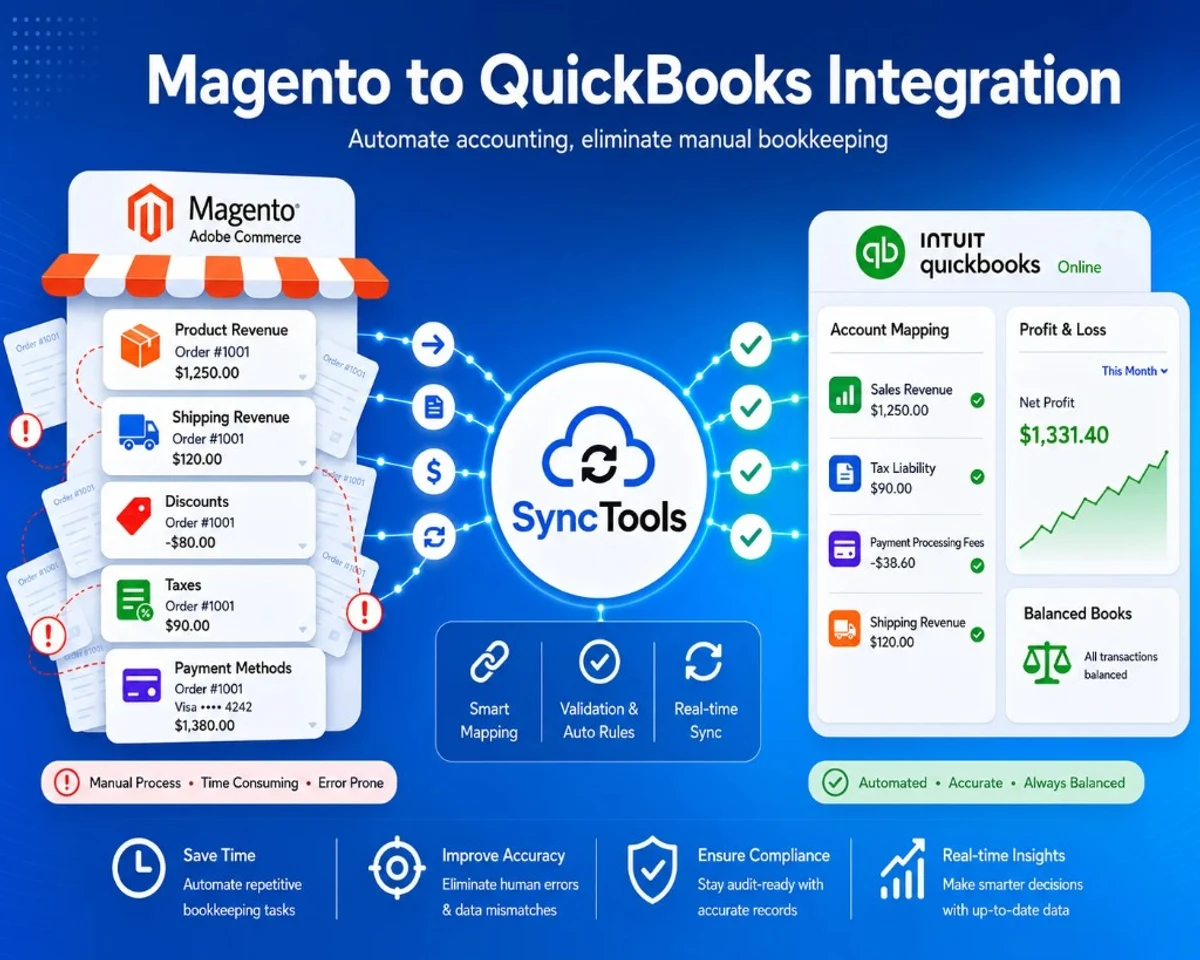
Connecting Magento to QuickBooks Online stops the cycle of manual CSV exports, spreadsheet reconciliation, and journal entries that drain bookkeeping hours from every growing Adobe Commerce business.
TL;DR: Magento merchants processing more than 300 orders per month spend an average of 15 to 25 hours per month on manual bookkeeping: exporting order reports, importing into QuickBooks, adjusting tax and fee lines, and reconciling discrepancies. SyncTools connects Magento (Adobe Commerce) to QuickBooks Online automatically in under 30 minutes, syncing orders, refunds, fees, and sales tax to the correct accounts without spreadsheets or manual entries.
Why Magento Accounting Is More Complex Than Most Platforms
Magento's strength (deep customisation, multi-store architecture, complex product types, and enterprise-grade tax configurations) is exactly what makes its accounting integration harder than Shopify or WooCommerce.
A typical Magento order might include:
- Simple and configurable products with different SKUs and costs
- Bundle products where revenue needs to be allocated across components
- Shipping charged separately or waived under promotional rules
- Multiple payment methods in a single order (store credit + Stripe + PayPal)
- Sales tax calculated per line item across multiple US jurisdictions using Vertex or Avalara
- Discount rules from cart price rules, coupon codes, or customer group pricing
Each of these creates accounting entries that a generic integration can mis-map.
Posting a bundle product as a single line to a single revenue account hides your true product mix.
Netting payment gateway fees against revenue understates both gross sales and operating costs.
And recording sales tax as income (the most common mistake when merchants simply import the Magento order total) creates a tax liability problem that compounds every quarter.
Magento's multi-store architecture adds another layer: merchants running separate store views for different brands, languages, or regions often need per-store revenue reporting inside QuickBooks, which requires class tracking or location-level mapping that out-of-the-box solutions don't handle.
What a Magento QuickBooks Integration Does
A purpose-built Magento QuickBooks integration handles the full lifecycle of a Magento order in QuickBooks automatically:
| Magento Data | QuickBooks Treatment |
|---|---|
| Product revenue (gross) | Sales or Product Revenue income account |
| Shipping charged to customer | Shipping Revenue income account |
| Discount / coupon applied | Discount contra-revenue or expense account |
| Sales tax collected | Sales Tax Payable liability account |
| Payment gateway fee (Stripe, PayPal, Braintree) | Payment Processing Fees expense account |
| Credit memo / refund | Negative adjustment to original revenue accounts |
| Payout deposit to bank | Cleared against clearing account in bank reconciliation |
This mapping ensures your QuickBooks P&L shows gross revenue (not revenue net of tax), your balance sheet shows sales tax liability accurately, and your bank reconciliation clears against the actual payout amount, not the gross order total.
Comparing Magento QuickBooks Integration Options
Each solution has strengths depending on the merchant's requirements.
How We Evaluated Magento QuickBooks Integration Solutions
Not every Magento QuickBooks integration solves the same problems.
For this comparison, we evaluated each approach against the accounting and operational requirements most Adobe Commerce merchants encounter as they scale.
Our evaluation focused on:
- Accounting accuracy: correct handling of gross sales, sales tax, discounts, payment gateway fees, shipping revenue, and refunds.
- Implementation effort: setup complexity, developer involvement, and ongoing maintenance.
- Magento compatibility: support for Adobe Commerce, Magento Open Source, multi-store environments, configurable and bundle products.
- Reconciliation quality: ability to match Stripe, PayPal, or other gateway settlements with QuickBooks deposits.
- Scalability: performance for merchants processing hundreds or thousands of monthly orders.
- Operational flexibility: support for scheduled syncs, historical imports, multi-currency, and per-store reporting.
A business processing 30 orders per month has different priorities than an enterprise Adobe Commerce deployment with multiple storefronts and complex tax configurations.
The recommendations below are intended to help identify the most appropriate integration approach for each scenario.
Every merchant's requirements are different.
Manual CSV Import
Strengths
- No software subscription
- Complete control over imported data
- Suitable for very low transaction volumes
Limitations
- Time-consuming
- High risk of manual errors
- Difficult to reconcile refunds and payment gateway settlements
- Does not scale as order volume grows
Adobe Commerce Marketplace Extensions
Strengths
- Installed directly within Magento
- Familiar deployment model for Magento developers
- Suitable for merchants wanting everything inside Adobe Commerce
Limitations
- Extension maintenance during Magento upgrades
- Varying support quality between vendors
- Feature sets differ significantly across extensions
- May require ongoing developer involvement
SyncTools
Strengths
- No Magento extension required
- Cloud-based deployment
- Automated account mapping
- Multi-store support
- Historical imports
- Refund and payout reconciliation
- Works alongside existing Magento configuration
Considerations
- Requires initial account mapping review.
- Merchants with highly customised accounting workflows may wish to validate mappings before going live.
Which Magento QuickBooks Integration Is Right for Your Business?
The best integration depends less on your accounting software and more on the complexity of your Magento operation.
| Business Type | Recommended Approach | Why |
|---|---|---|
| New Magento store (under 50 orders/month) | Manual CSV export | Lowest cost while transaction volume remains small. |
| Growing merchant (50 to 300 orders/month) | Cloud integration | Eliminates repetitive bookkeeping and improves reporting accuracy. |
| High-volume retailer (300+ orders/month) | SyncTools | Automated reconciliation, refunds, fees, tax mapping and historical sync significantly reduce finance workload. |
| Multi-store Adobe Commerce | SyncTools | Supports multiple websites, store views and QuickBooks class mapping. |
| Enterprise with Avalara or Vertex | SyncTools | Preserves complex tax calculations and liability reporting without manual adjustments. |
Step-by-Step: Setting Up the Magento QuickBooks Integration
Step 1: Generate a Magento API Integration Token
Before connecting SyncTools, create a Magento integration (API credentials) in your Magento admin panel:
- Log in to your Magento Admin Panel
- Navigate to System → Extensions → Integrations
- Click Add New Integration
- Name the integration (e.g., "SyncTools") and set a secure password
- Under API → Resource Access, select the resources SyncTools needs: Orders, Invoices, Credit Memos, Customers, Catalog (read-only)
- Click Save, then Activate
- Copy the Access Token. You will need this in SyncTools
Security note: Use the minimum required API resource permissions. SyncTools only reads from Magento. It never writes orders, modifies inventory, or changes customer records.
Step 2: Connect Magento to SyncTools
- In SyncTools, go to Integrations → Add Source
- Select Magento 2 / Adobe Commerce
- Enter your Magento store base URL (e.g., https://yourstore.com)
- Paste the Access Token from Step 1
- Select your Magento website and store view (for multi-store configurations)
- Click Connect: SyncTools will verify the connection and pull your order history metadata
Step 3: Connect QuickBooks Online
- Go to Integrations → Add Accounting System
- Select QuickBooks Online
- Click Connect and complete the Intuit OAuth 2.0 authorization. Select your QBO company
- SyncTools reads your existing QuickBooks chart of accounts and generates a recommended account mapping
Step 4: Configure Your Account Mapping
Review and confirm the account mapping for each Magento transaction type. The defaults work for most merchants, but verify these specific mappings:
Revenue accounts:
- Gross product sales → your Sales or Product Revenue income account
- Shipping charged to customers → Shipping Revenue (or merge into Sales if preferred)
Liability accounts:
- Sales tax collected → Sales Tax Payable (liability). Never map this to an income account
Expense accounts:
- Payment gateway fees (Stripe, PayPal, Braintree) → Payment Processing Fees or Bank Charges
- Discount amount → Discounts Given (expense) or contra-revenue account
For multi-store merchants: Enable QuickBooks Classes and assign one class per Magento website or store view. This gives you per-store P&L inside a single QuickBooks company.
Step 5: Set Sync Frequency and Run First Sync
Choose your sync frequency:
- Real-time: New Magento orders post to QuickBooks within 5 to 15 minutes of creation
- Daily: All orders from the previous day sync in a batch each morning
- Hourly: A middle ground for high-volume stores
Click Sync Now to run your first sync. After it completes, verify in QuickBooks:
- Gross revenue matches your Magento Sales Report total for the same period
- Sales Tax Payable balance matches Magento's Tax Report
- Payment gateway fee entries appear in your expense accounts
- Credit memos (refunds) appear as negative adjustments to revenue
Any discrepancy greater than rounding ($0.01-$0.05 per order) indicates a mapping issue.
The most common causes: discounts mapped to revenue (reducing income instead of appearing as expense), or tax mapped to income (inflating revenue and understating liability).
Advanced Topics & Troubleshooting
Migrating from Another Magento QuickBooks Integration
Many merchants already have an existing integration in place or have been relying on manual imports for years. Migrating to a new integration does not necessarily require starting from scratch.
A typical migration involves:
- Reviewing the existing QuickBooks account structure.
- Verifying historical transactions have already been posted correctly.
- Configuring account mappings for revenue, tax, shipping, discounts and payment processing fees.
- Running a limited historical sync to validate results.
- Enabling live synchronisation once reconciliation has been confirmed.
Before switching integrations, merchants should avoid running two systems simultaneously, as this can create duplicate transactions in QuickBooks.
A staged migration with validation against a recent accounting period is generally the safest approach.
Handling Magento-Specific Accounting Scenarios
Bundle Products
Magento bundle products (where a customer buys a "kit" made up of multiple SKUs) create one order line item in Magento but represent multiple products in your inventory.
SyncTools posts bundle revenue to a single revenue account by default, matching Magento's order total.
If you need per-component revenue allocation, configure a bundle product mapping in SyncTools to split revenue across multiple accounts.
Multiple Payment Methods on One Order
Magento allows customers to split payment between store credit, gift cards, and an external gateway (Stripe, PayPal). SyncTools maps each payment method to the appropriate QuickBooks clearing account, so your bank reconciliation reflects the actual payout from each gateway separately.
Multi-Currency Magento Stores
If your Magento store accepts multiple currencies, SyncTools converts each order to your QuickBooks home currency at the transaction date exchange rate from a live rate feed. Multi-currency order amounts appear in QuickBooks in your base currency with the exchange rate recorded, consistent with QuickBooks Online's native multi-currency accounting.
Avalara or Vertex Tax Rates
Many mid-market Magento merchants use Avalara AvaTax or Vertex to calculate sales tax in real time. SyncTools reads Magento's per-order tax amount (already calculated by Avalara or Vertex) and posts it directly to Sales Tax Payable with no duplicate tax calculation. Your QuickBooks tax liability will match your Avalara or Vertex liability report exactly.
Common Magento QuickBooks Sync Errors and Fixes
"Duplicate transaction" error in QuickBooks
Usually caused by a previous integration tool (or manual import) that already posted the same order.
Check your QuickBooks transaction list for the order date range and delete duplicates before re-syncing.
Tax amounts appearing in revenue accounts
Indicates the account mapping has Sales Tax Collected pointing to an income account. Open your SyncTools mapping settings and move it to Sales Tax Payable (under Liabilities).
Refunds not matching QuickBooks credit memos
Magento credit memos can be partial (refunding only part of an order). Confirm SyncTools is set to create QuickBooks credit memos (not just reverse journal entries) so each refund ties back to the original revenue line.
Multi-store orders appearing under the wrong class
Verify the Magento website ID in your SyncTools multi-store configuration matches the Magento admin website ID, not the store view ID. These are different identifiers in Magento's architecture.
Common Magento Accounting Mistakes
Many bookkeeping issues originate from incorrect integration configuration rather than QuickBooks itself.
Some of the most common problems include:
- Recording Shopify or Magento payout amounts as revenue instead of gross sales.
- Posting collected sales tax as income rather than a liability.
- Recording payment gateway fees by reducing revenue instead of recognising them as operating expenses.
- Treating refunds as miscellaneous expenses instead of reversing the original sale.
- Mixing multiple Magento stores into a single revenue account without class or location tracking.
Correcting these mapping issues early helps maintain accurate financial statements and significantly reduces month-end reconciliation effort.
Magento QuickBooks Integration Checklist
Before enabling automatic synchronisation, verify that:
- Revenue accounts are correctly mapped.
- Sales tax posts to a liability account.
- Payment gateway fees post to expense accounts.
- Shipping revenue is mapped consistently.
- Refunds create QuickBooks credit memos.
- Multi-store classes or locations are configured correctly.
- Historical transactions have been reviewed.
- A test reconciliation matches your latest payout.
Completing this checklist before your first production sync helps avoid duplicate entries and reduces post-implementation adjustments.
Magento QuickBooks Integration Comparison Table
| Feature | Manual CSV | Marketplace Extension | SyncTools |
|---|---|---|---|
| Initial setup | Easy | Moderate | Easy |
| Developer required | No | Usually | No |
| Multi-store support | Manual | Partial | ✓ |
| Bundle products | Manual | Partial | ✓ |
| Refund automation | ✗ | Partial | ✓ |
| Historical imports | Manual | Varies | ✓ |
| Multi-currency | ✗ | Varies | ✓ |
| Scheduled sync | ✗ | ✓ | ✓ |
| Real-time sync | ✗ | Partial | ✓ |
| Payment gateway fees | Manual | Partial | ✓ |
| Sales tax mapping | Manual | ✓ | ✓ |
| Bank reconciliation | Manual | Partial | ✓ |
| Maintenance | Manual | Extension updates | Cloud managed |
| Best for | Very small stores | Existing Magento extension users | Growing & enterprise merchants |
Final Thoughts
Magento's flexibility is one of its greatest strengths, but it also introduces accounting complexity that generic integrations often struggle to handle.
As transaction volumes increase, finance teams spend less time analysing the business and more time correcting imports, reconciling payments, and fixing mapping issues.
Choosing the right integration is therefore less about moving data between two systems and more about preserving accounting accuracy while reducing manual work.
Merchants should evaluate any solution on how well it handles tax, refunds, payment gateway fees, multi-store reporting, and reconciliation, not simply whether it can sync orders.
For businesses that want a cloud-based solution without maintaining Magento extensions, SyncTools provides automated synchronisation between Magento and QuickBooks while supporting the accounting workflows that growing Adobe Commerce merchants typically require.
Frequently Asked Questions
Does Magento have a native QuickBooks integration?
- Magento (Adobe Commerce) does not include a built-in QuickBooks Online integration as of 2026. The Adobe Commerce Marketplace offers third-party connectors, but no first-party Intuit integration exists. Most Magento merchants use a dedicated sync app like SyncTools to automate the connection between Magento and QuickBooks.
Does the integration work with both Magento 2 and Adobe Commerce?
- Yes. SyncTools connects to Magento Open Source 2.x and Adobe Commerce (formerly Magento Commerce) using the Magento 2 REST API. The same integration covers both the self-hosted open-source edition and Adobe's cloud-hosted Commerce edition. Magento 1 reached end-of-life in 2020 and is not supported.
How does Magento sales tax sync to QuickBooks without overstating revenue?
- Magento collects sales tax on each order and includes it in the order total. When syncing to QuickBooks, SyncTools maps the tax amount to a Sales Tax Payable liability account, never to a revenue account. This keeps tax off your P&L income line, prevents overstating revenue, and ensures your quarterly sales tax remittance calculations are accurate.
What Magento data syncs to QuickBooks automatically?
- SyncTools syncs Magento product sales, shipping charges collected from customers, discounts and coupons applied, sales tax collected, payment gateway fees, and credit memo refunds to the correct QuickBooks accounts automatically. Customer contact information, product catalog data, Magento inventory levels, and CMS content do not sync to QuickBooks.
Can I sync multiple Magento store views or websites to one QuickBooks company?
- Yes. SyncTools supports multi-store Magento configurations. You can consolidate revenue from all Magento store views or websites into a single QuickBooks company file, or split them into separate QuickBooks classes or subsidiaries for per-store reporting. This is useful for merchants running multiple brands or regional stores from one Magento installation.
How do Magento credit memos sync to QuickBooks?
- When a Magento credit memo (refund) is issued, SyncTools posts a corresponding credit memo or negative adjustment in QuickBooks linked to the original revenue accounts. Product refunds reduce Sales, tax refunds reduce the Sales Tax Payable liability, and shipping refunds reduce Shipping Revenue, keeping each account balance accurate without manual entries.
How long does it take to set up the Magento QuickBooks integration?
- Most merchants complete the SyncTools setup in 20 to 30 minutes. Generating the Magento API integration token takes 5 minutes in the Magento admin panel. QuickBooks Online connects via OAuth in under 2 minutes. Account mapping review adds another 10 to 15 minutes. Historical backfill of prior periods (up to 2 years) runs in the background and adds 30 to 90 minutes depending on order volume.
Ready to automate your accounting?
Connect Shopify, WooCommerce, or Linnworks to QuickBooks, Xero & more. Setup in minutes.