How to Cancel, Close, or Pause a Shopify Store
If you want to cancel your Shopify store, go to Settings > Plan > Cancel plan from the Shopify admin. For eligible paid stores, Shopify schedules the store for deactivation at the end of the current billing cycle.
But canceling the subscription is only the first step.
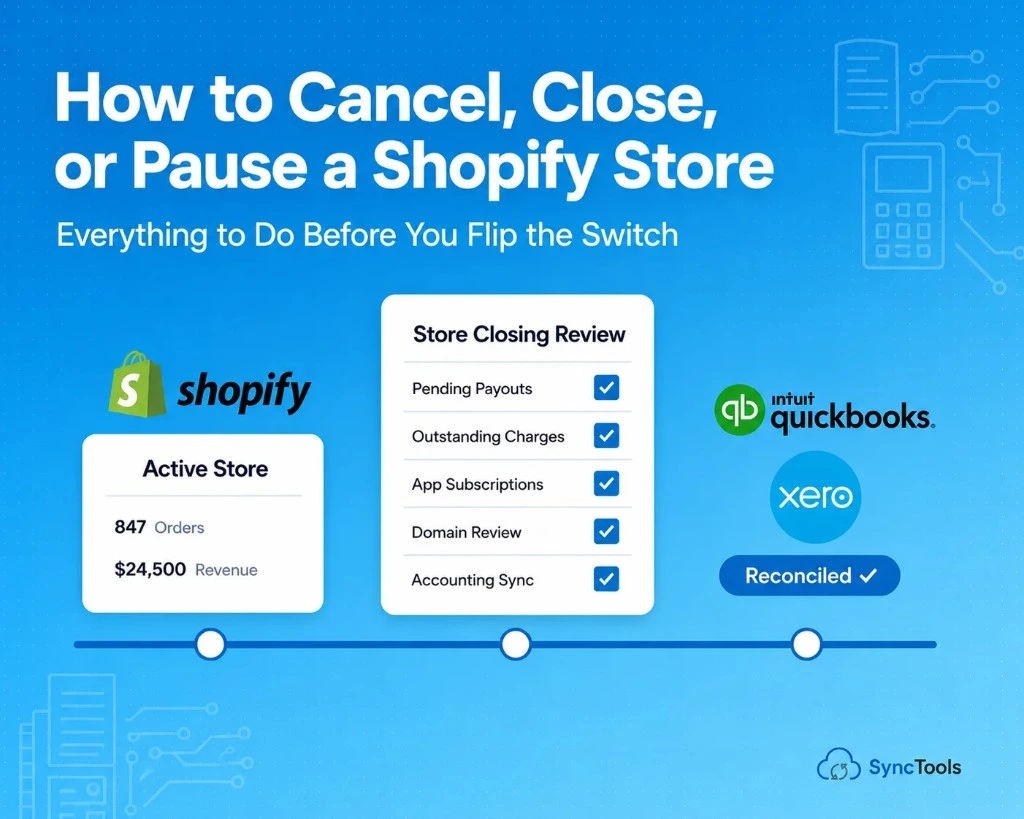
Before your Shopify store closes, you should review pending payouts, refunds, chargebacks, outstanding charges, app subscriptions, domains, customer obligations, and accounting records. Your store may be deactivated while some financial activity continues to be processed afterward.
If you're not sure whether you want to leave Shopify permanently, you can also consider Pause and Build, which disables checkout while allowing you to continue working on your store.
Quick Answer: How Do You Cancel Shopify?
Log in as the Shopify store owner and go to Settings > Plan. Select Cancel plan, review your outstanding charges and Shopify-managed domains, choose Cancel my plan and uninstall all apps, provide a reason, enter your password, and confirm.
Your store will deactivate at the end of your current billing cycle. Shopify Plus merchants need to contact Shopify Plus Support for cancellation.
This guide explains how to cancel, pause, or deactivate Shopify and what to do with your payouts, apps, domains, chargebacks, and accounting before you close.
What Is The Difference Between Canceling, Deactivating, Pausing, And Deleting A Shopify Store?
If you have searched for how to delete a Shopify store, how to close a Shopify store, or how to deactivate a Shopify store, you are essentially looking at closely related actions.
However, the terminology matters, because each term points to a different action.
Shopify officially refers to completely closing an active store as deactivating it. Pausing is a separate option for businesses that may want to return.
| Action | What it means | Best for |
|---|---|---|
| Cancel your Shopify plan | Starts the process of ending your subscription | Stores you want to close |
| Deactivate your store | Your store stops operating at the end of the billing cycle | Businesses leaving Shopify |
| Pause and Build | Checkout is disabled while you retain access to the store | Temporary breaks or seasonal businesses |
| Reactivate | You reopen a deactivated store by selecting a new plan | Businesses returning to Shopify |
| Delete store data | Permanently deletes eligible customer/store personal data | Businesses that don't plan to return |
Shopify currently guarantees a deactivated store's information for two years, which allows the owner to reactivate it without rebuilding the store from scratch.
What Should You Do Before You Cancel Shopify?
Technically, closing the store takes only a few steps, but financially, there is more to check before you move on.
Financially, there is more to check.
Before you cancel your Shopify account, first review what is still happening behind the storefront.
Shopify Store Closing Checklist
| Check Before Closing | Why It Matters |
|---|---|
| Pending orders | Customers may still be waiting for products |
| Refunds and returns | They can affect your final sales and payouts |
| Shopify Payments payouts | Money may still be on its way to your bank |
| Outstanding Shopify charges | Fees can remain payable |
| App subscriptions | Some external app charges may continue |
| Chargebacks | Customers may dispute earlier transactions |
| Gift cards | Outstanding customer obligations may remain |
| Domain renewals | Cancelling Shopify does not automatically stop every domain renewal |
| Billing and payout exports | You may need these records later |
| Accounting records | Final sales, fees, taxes and refunds should be reconciled |
Shopify specifically recommends reviewing outstanding balances, third-party subscriptions, domains, pending payouts, and financial records before deactivation.
If your books are already difficult to reconcile, it can be worth reviewing the broader ecommerce accounting process before closing the store. That context can make the next steps easier to follow.
How to Cancel a Shopify Store Step by Step
Here is the current process for canceling your Shopify store, starting with the basics.
Step 1: Log In as the Store Owner
The store owner must complete the cancellation through the Shopify admin.
If you use two-step authentication, you may also need to complete the authentication process before Shopify allows the account change.
Step 2: Open Your Shopify Plan
From the Shopify admin, go to:
Settings > Plan
You will see the plan currently connected to your store.
Step 3: Select Cancel Plan
If you have a paid subscription, choose:
Cancel plan
If the store is still within its free trial period, Shopify may instead display Cancel trial.
Step 4: Review the Alternatives
Before completing the cancellation, Shopify may show other choices, such as:
- Moving to another subscription
- Switching to Pause and Build
- Starting another store
If you expect to start selling again, pausing may make more sense than completely shutting down your Shopify store.
Step 5: Review Domains and Pending Charges
Before you continue, take a quick look at:
- Shopify-managed domains
- App charges that are still pending
- Transaction fees
- Shipping label costs
- Any other unpaid Shopify charges
Closing the store doesn't always clear these costs right away, so it is best to review them first.
Step 6: Confirm the Cancellation
Choose the option to cancel your plan and uninstall the apps connected through Shopify.
Shopify will ask why you are leaving. Select your reason, continue, and enter your password.
Once confirmed, your subscription is scheduled to end, and your store will deactivate at the end of the current billing cycle.
Important Cancelling today does not necessarily mean your Shopify store disappears today. Under Shopify's current process, an eligible paid store is deactivated when its existing billing cycle ends.
How to Deactivate a Shopify Store From Your Phone
You can also deactivate your Shopify store through the Shopify app.
The process is similar:
- Sign in to the Shopify app as the store owner.
- Open Settings.
- Select Plan.
- Choose Cancel plan or Cancel trial.
- Review any alternatives Shopify displays.
- Check outstanding charges and domains.
- Continue with cancellation.
- Select your reason for leaving.
- Enter your password.
- Confirm the cancellation.
Shopify sends a confirmation email once it deactivates the store.
Should You Pause Shopify Instead of Canceling It?
Not every seller looking for how to stop Shopify wants to leave permanently, so you may need a few months away from selling instead.
You may need a few months away from selling.
Shopify's Pause and Build plan is designed for this situation.
When an eligible store moves to Pause and Build:
- The storefront can remain accessible.
- Customers cannot complete checkout.
- You retain access to Shopify admin.
- You can continue working on products and your storefront.
- A reduced subscription fee applies.
- Apps can remain active and may continue charging.
You need to select a new eligible Shopify plan when you are ready to start selling again.
Pause and Build is available only after the free trial has ended and isn't available to Shopify Plus stores.
Pause vs Cancel Shopify
| Choose Pause When... | Choose Cancel When... |
|---|---|
| You expect to sell again | You are closing the business/store |
| Your business is seasonal | You are permanently moving platforms |
| You are rebuilding your store | You no longer need Shopify |
| You still need admin access | You are ready to complete final records |
| You want to retain your setup | You have no immediate plans to return |
The important question is not simply "How do I cancel Shopify?"
It is:
"Do I want to stop selling temporarily or close this store completely?"
Answer that before clicking Cancel plan.
Can You Delete a Shopify Store Permanently?
Many sellers use the phrase delete Shopify store, but Shopify separates store deactivation from data deletion.
When you cancel your subscription, Shopify deactivates the store at the end of the billing period.
It does not immediately erase everything, so Shopify says deactivated store information is guaranteed for two years, allowing you to reopen the store during that period.
Shopify says deactivated store information is guaranteed for two years, allowing you to reopen the store during that period.
If you want personal data related to the deactivated store erased, the store owner can make a separate data deletion request.
That distinction matters if you're looking to delete a Shopify store but may want to return later. Deactivation gives you that flexibility. Permanent data deletion does not.
What Happens to Your Shopify Payments Payouts After You Close the Store?
Pending Shopify Payments payouts don't simply disappear when your store is deactivated. Shopify says they continue to be processed according to your payout schedule.
The problem is what happens if something goes wrong after deactivation. You may lose normal Shopify admin access and need to reactivate the store to resolve payout issues.
Before closing, export your payout history and make sure outstanding settlements are understood and reconciled.
If the payout fails after your store is deactivated, you won't have normal Shopify admin access to change the payout details or troubleshoot the problem. You may need to reactivate the store.
That makes it sensible to review pending payouts before your current billing period ends.
Why Your Final Shopify Payout May Not Match Your Sales
Seeing money arrive in your bank account does not automatically mean your Shopify books are finished, because a Shopify payout can reflect several types of activity.
A Shopify payout can reflect several types of activity.
For example:
| Shopify Activity | Accounting Impact |
|---|---|
| Product sale | Revenue |
| Refund | Reduction in sales |
| Shopify/payment fee | Expense |
| Sales tax collected | Usually tracked separately from revenue |
| Chargeback | Payment adjustment |
| Discount | Reduction/adjustment to sales |
| Payout | Settlement of underlying transactions |
This is why recording the bank deposit itself as Shopify sales can create inaccurate financial records.
Your gross Shopify sales and the amount deposited into your bank are not necessarily the same.
For a deeper explanation of this accounting flow, see SyncTools' guide to integrating Shopify with QuickBooks.
What Happens to Chargebacks After You Close Shopify?
Closing the store doesn't prevent a customer from disputing an older transaction, so chargebacks can still be filed.
Shopify states that chargebacks can still be filed for transactions completed before deactivation.
The bigger issue is access: once the store is deactivated at the end of the billing cycle, you lose access to Shopify admin.
Once the store is deactivated at the end of the billing cycle, you lose access to Shopify admin. That means you cannot normally submit additional evidence through the admin to contest a chargeback without reactivating the store.
If you already have open customer or payment issues, review them before closing.
Will Shopify Apps Keep Charging After Cancellation?
Important: Canceling and pausing Shopify do not have the same effect on apps. Apps are automatically uninstalled when you cancel the store, while apps can remain active and continue charging when you use Pause and Build.
However, outstanding app usage charges can still become payable.
There is also an important exception: some third-party apps bill merchants outside Shopify's billing system.
Some third-party apps bill merchants outside Shopify's billing system. Uninstalling Shopify or closing the store may not cancel those external subscriptions.
Shopify recommends reviewing separately billed subscriptions directly with the relevant app provider.
If you choose Shopify Pause and Build instead, apps generally remain active unless you uninstall them so that recurring charges can continue.
What Happens to Your Shopify Domain?
A domain is another item to handle, and you should review it before closing to make sure you don't miss anything.
If you bought your domain through Shopify and plan to keep using it elsewhere, consider transferring it to another domain provider.
If a third-party domain is connected to Shopify and you no longer need it, review its renewal settings with the domain provider.
Shopify states that domain renewals aren't automatically canceled simply because you cancel the store.
This is easy to overlook, especially when you're focused on closing orders and payments.
Don't Close Shopify Before You Close the Books
Knowing how to close a Shopify account handles the platform side, but your accounting still needs a clean ending.
Your accounting still needs a clean ending.
Before the store becomes inactive, make sure your accounting records cover:
- Gross product sales
- Refunds
- Discounts
- Shopify fees
- Payment processing fees
- Taxes collected
- Shipping income or costs
- COGS
- Chargebacks
- Payout settlements
- Outstanding adjustments
Shopify lets merchants export billing history. Shopify Payments users can also export payout history and transaction information for their records.
Save those records before closing.
Save those records before closing, so final reconciliation is easier, especially if your accountant needs to revisit an earlier payout, refund, or tax entry later.
Using QuickBooks? Reconcile Shopify Before You Disconnect
If your Shopify activity is being recorded in QuickBooks Online, confirm that your final transactions have reached the right accounts before disconnecting anything.
A proper Shopify accounting workflow should separate items such as:
- Sales → revenue
- Fees → expenses
- Refunds → sales returns/refunds
- Taxes → relevant tax accounts
- Payouts → clearing/bank reconciliation
SyncTools' Shopify QuickBooks integration syncs Shopify orders, refunds, fees, taxes, COGS, and payout settlements into QuickBooks while keeping those transaction types categorized separately.
Once your final payout arrives, compare the Shopify settlement with the corresponding bank transaction.
For a step-by-step process, see the SyncTools guide on reconciling Shopify payouts with QuickBooks Online.
Using Xero? Finish the Same Reconciliation Before Closing
The same principle applies if your books are in Xero.
Closing Shopify before checking the final activity can leave you trying to reconstruct information later.
Before deactivation, compare your Shopify data with Xero for:
- Sales
- Refunds
- Fees
- Taxes
- COGS
- Payouts
- Bank deposits
If Shopify and Xero are part of your current accounting setup, the Shopify Xero integration can help keep ecommerce transactions organized in Xero.
You can also follow the SyncTools guide for reconciling Shopify payouts with Xero when checking the final settlement against your bank.
How SyncTools Helps Before You Close a Shopify Store
Canceling Shopify is easy. Making sure the financial activity behind the store is fully reconciled is the part that can take more work.
Before your store is deactivated, you want to know that the Shopify activity flowing into your accounting system is complete and correctly categorized.
SyncTools helps connect Shopify transaction data with accounting systems such as QuickBooks Online and Xero, including:
- Sales
- Refunds
- Discounts
- Fees
- Taxes
- COGS
- Payouts
- Transaction adjustments
- Account mappings
- Payout reconciliation
Instead of treating a Shopify payout as a single bank deposit, SyncTools helps organize the transactions that make up that payout so you can reconcile the underlying activity with your accounting records.
That matters even more when you're closing a store. You may not have the same Shopify admin access later, so completing the reconciliation while the store is still active can save you from reconstructing transactions afterward.
Close the Store. Not the Accounting Trail.
Before you cancel Shopify, reconcile your final sales, refunds, fees, taxes, COGS, and payouts with SyncTools.
Connect Shopify with QuickBooks Online or Xero and get your final Shopify transactions organized before you close the store.
Closing your Shopify store? Don't leave your final payouts to reconcile later.
Sync your Shopify sales, refunds, fees, taxes, COGS, and payouts with your accounting system before deactivation.
Shopify Store Cancellation Checklist
Before cancellation
- Resolve orders
- Process refunds
- Check chargebacks
- Review payouts
- Review outstanding charges
- Cancel external apps
- Review domains
- Export records
- Reconcile accounting
- Decide whether to pause instead
After cancellation
- Confirm deactivation email
- Monitor pending payouts
- Monitor chargebacks
- Keep financial records
- Handle any post-deactivation invoices
What Should You Export Before Closing Shopify?
Suggested list:
- Shopify Payments payout history
- Transaction history
- Billing history
- Orders
- Refunds
- Chargebacks
- Gift card balances
- Customer/order records required for legal/accounting retention
- Inventory records
- Tax reports
- Accounting exports
What Happens If You Don't Cancel Shopify?
If you stop using your Shopify store but don't cancel your plan, your Shopify subscription does not automatically end simply because you stop selling.
Depending on your plan and account status, you may continue to incur Shopify subscription charges and other outstanding costs. Apps or services billed outside Shopify may also continue charging separately.
If you're no longer selling but may return later, Pause and Build may be a better option than leaving a paid store inactive. If you have decided to stop using Shopify permanently, cancel the plan through Settings > Plan rather than simply abandoning the store.
Before you leave the store inactive, review:
- Your current Shopify subscription and outstanding charges
- Shopify Payments payouts that are still pending
- App subscriptions, including services billed outside Shopify
- Domain renewal settings
- Outstanding refunds and chargebacks
- Gift cards or other customer obligations
- Shopify billing and payment records
- Your accounting records and unreconciled transactions
Simply stopping sales does not mean the financial activity associated with the store is finished.
If you're permanently leaving Shopify, cancel the plan and make sure your final transactions and payouts are reconciled before you lose normal access to the store.
Frequently Asked Questions
How do I cancel my Shopify account?
Log in to Shopify as the store owner and go to Settings > Plan. Select Cancel plan and complete the steps shown on the screen. It is also a good idea to check any unpaid charges or domain settings before you finish.
Can you cancel Shopify anytime?
An eligible store owner can initiate cancellation through Shopify admin. The store does not necessarily close immediately, though. Under Shopify's current process, the subscription is canceled, and the store deactivates at the end of its existing billing cycle. Shopify Plus merchants need to contact Shopify Plus Support.
How do I delete my Shopify store permanently?
Shopify normally uses deactivation rather than deletion to close a store. After cancellation, Shopify guarantees the deactivated store's information for two years so it can be reopened. If you want personal data erased rather than retained, the store owner can make a separate data deletion request.
Can I pause my Shopify store instead of closing it?
Yes. If you only want to stop selling for a while, Shopify's Pause and Build plan may be a better choice. Your storefront remains online, but checkout is turned off. You can still manage the store from your admin, while some app charges may continue.
What happens to pending payouts when I close my Shopify store?
Pending Shopify Payments payouts continue processing after store deactivation and are sent to the bank account on file based on your payout schedule. However, if a payout fails after deactivation, you may need to reactivate the store because normal Shopify admin access is no longer available.
Should I reconcile my accounting before I cancel Shopify?
Yes. Check that sales, refunds, fees, taxes, COGS, chargebacks and payouts are correctly recorded before the store closes. Exporting Shopify billing and payout data also gives you records to reference later. This is especially useful when reconciling final Shopify settlements with QuickBooks, Xero or your bank.
Ready to automate your accounting?
Connect Shopify, WooCommerce, or Linnworks to QuickBooks, Xero & more. Setup in minutes.