
eBay QuickBooks Integration Complete User Guide
A full walkthrough of the eBay QuickBooks integration in SyncTools - from initial setup to daily sync management, account mapping, and reconciliation.
How SyncTools eBay QuickBooks Integration Works
The eBay - SyncTools - QuickBooks integration automates accounting for your entire eBay sales cycle, eliminating manual data entry and keeping your QuickBooks Online books reconciled to the penny. Once your eBay account and QuickBooks are connected, SyncTools imports your Orders, Items, Refunds, Fees, and Payouts, then posts accurate, correctly categorized entries into QuickBooks on the schedule you choose - daily, weekly, or monthly - in either summarized or individual mode.
eBay Fees We Match - Every fee eBay deducts is captured and posted to its own QuickBooks expense account - not buried in the net payout - so profitability stays accurate and totals tie back to your Managed Payments statement.
Refunds - Each eBay refund syncs as a Credit Note linked to the original invoice where possible, reversing revenue, tax, and inventory correctly. Handles full & partial refunds, goodwill (no-return) refunds, shipping/tax refunds, multiple staged refunds per order (each its own credit note for traceability), and refunds issued after a payout - with no double-counting.
Payouts - When eBay releases a Managed Payments payout, SyncTools records the exact net deposit and splits it into its true parts - gross sales as income, fees as expenses, refunds as credit notes - so it ties out against your bank feed. It aggregates multiple orders into one payout while preserving order references, and handles mixed payouts, refund-inclusive payouts, and payouts without orders (reserve releases, fee reversals).
AI Features for eBay QuickBooks Integration
AI Account Mapping: Goes beyond standard auto-mapping - AI recognizes each eBay transaction type and suggests or creates the correct QuickBooks chart-of-accounts mapping, cutting setup time and mis-categorization so books are accurate from the first sync.
AI Threshold Advisor: Continuously monitors sales against tax-registration thresholds across your selling regions (US economic nexus, UK/EU VAT) and proactively alerts you as you approach or cross a limit - helping you register at the right time and stay compliant.
How to Create Your SyncTools Account
- Go to the SyncTools site: https://app.synctools.ai/sign-in
- Click on "Create your account" if you're a new user, or click on "Sign-in" after filling in the details if you're an existing user.
Create your account Flow
- You'll be prompted to enter your email address. Type in your email address.
- After entering your work email address, click on the "Continue" button.
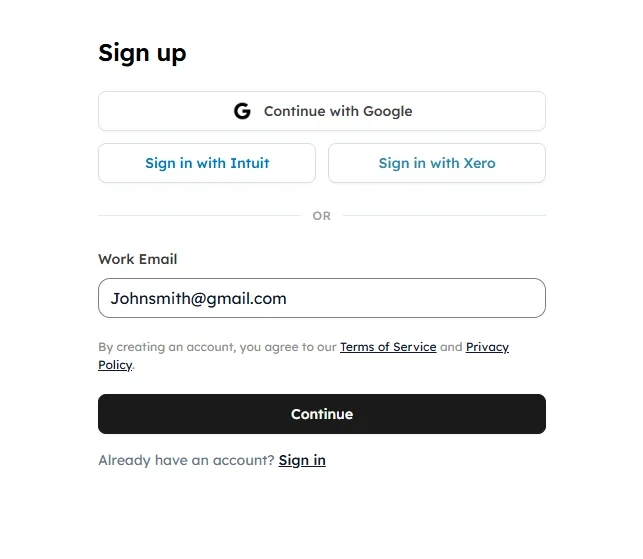
- Upon completing the registration using your email, you'll be prompted to input a six-digit code sent to the email address you provided.
-
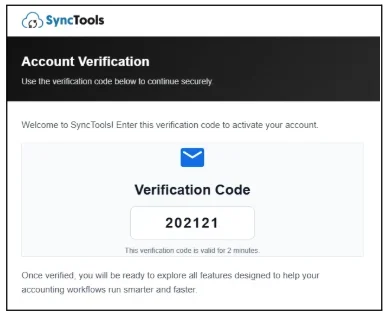
- After entering the code, click on "Verify".
- You will be redirected to the "Register your Account" page where you can enter all details and set up your password. Remember to use a strong and unique password to ensure account security.
- Fill in the details and click on "Create account".
- Once the entered details are confirmed, SyncTools will ask you to select your eCommerce and Accounting software.

Invite an Accountant / Book-keeper to SyncTools
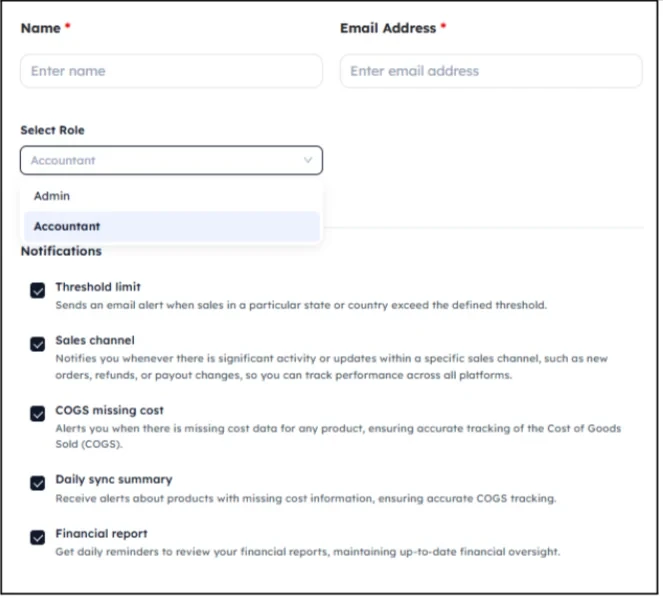
To invite an accountant or bookkeeper to your SyncTools account:
- You'll be prompted to enter the email address of the accountant or bookkeeper you wish to invite.
- After entering their email address, click on "Invite". Once the invitation is sent, the accountant or bookkeeper will receive an email with instructions on how to access your SyncTools account. Make sure you have their correct email address so they receive the invitation.
- Or skip this step if it is not required.
How to Connect eBay and QuickBooks to SyncTools
How do I Connect my eBay Account?
- Navigate to Integrations. This is typically found in the settings section of your SyncTools account.
- Once you're in the Integrations section, click on "Create connection". Select Source eBay store and click on Connect once you hover on it.
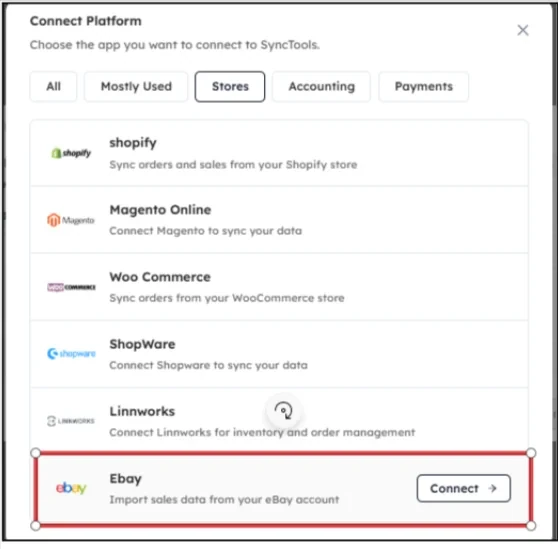
- Click on "Connect to eBay". You'll likely be prompted to authorize SyncTools to access your eBay account data. Kindly follow the on-screen instructions to grant access.
- After clicking Connect, a new window will pop up, typically displaying the eBay sign-in page.
- Enter your eBay login credentials (username and password) into the fields provided in the new window and grant the application access.
- After authorizing access and providing any necessary information, complete the connection process. SyncTools should now be connected to your eBay account.
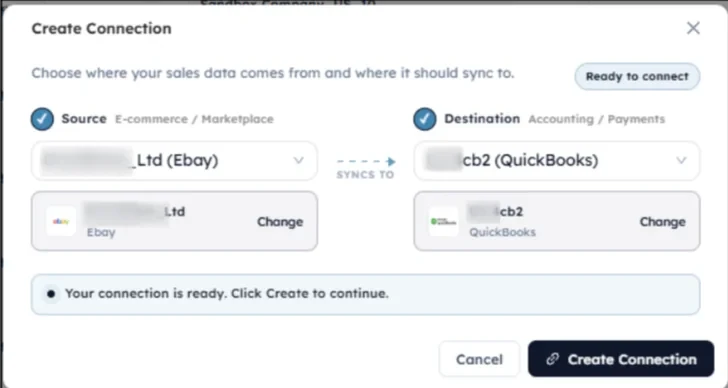
How do I connect QuickBooks?
To connect your QuickBooks Online with SyncTools, please follow similar steps to those used while connecting your eBay account, and it should connect successfully with SyncTools. After clicking the "Connect to QuickBooks" button, a new window will open, prompting you to log in to your QuickBooks Online account. Here's what you should do next:
- Navigate to the Integrations section in SyncTools and select the QuickBooks App if not selected earlier. Once QuickBooks is selected, click on the "Connect to QuickBooks" button.
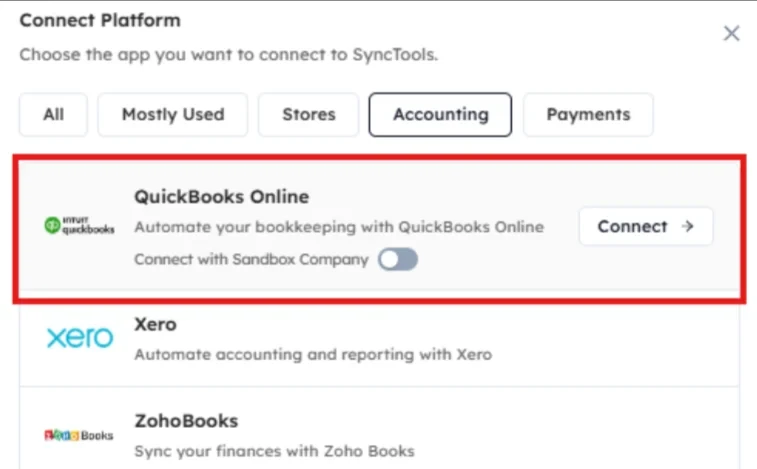
- After clicking the button, a new window will pop up, typically displaying the QuickBooks login page.
- Enter your QuickBooks Online login credentials (username and password) into the fields provided in this new window.
- Once logged in, QuickBooks will ask you to authorize SyncTools to access your QuickBooks Online account. Select the preferred QuickBooks Company, review the permissions requested, and click on the "Allow" button to grant SyncTools access.
- After authorizing access, the new window will likely close automatically, and you'll be redirected back to SyncTools.
- You will receive a confirmation message within SyncTools indicating that the connection to QuickBooks was successful.
- Once eBay & QuickBooks are connected successfully with SyncTools, you're good to go ahead with configuration and setting up your system. To do so, click on "Next".
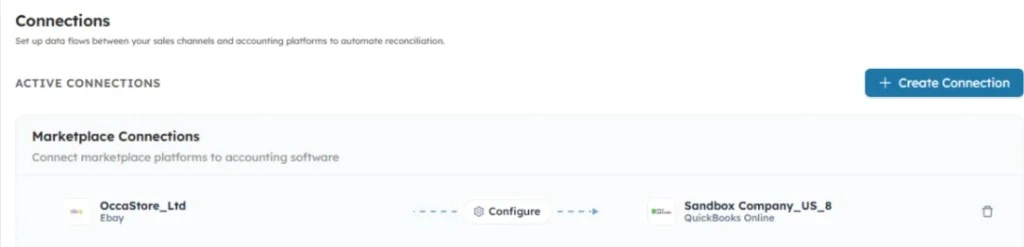
Configure eBay QuickBooks Synchronization Settings
What are the synchronization options and which one is considered more advantageous?
SyncTools offers two synchronization options: Summarized Entries and Individual Transaction Entries. Users can configure their preferred synchronization method based on their business needs.
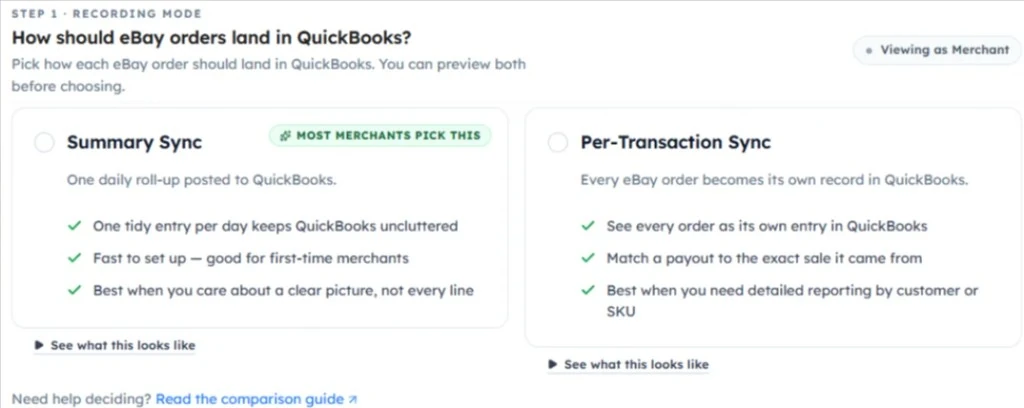
SyncTools strongly recommends using Summarized Entries for synchronization.
Note: Selection of the synchronization option depends entirely on your specific business needs. SyncTools doesn't mandate users to opt for Summarized entries.
- Summarized Entries consolidate multiple transactions into a single Journal Entry in QuickBooks.
- The consolidation process is based on the selected time-period frequency and configuration mapping within SyncTools.
- Summarized Entries simplify financial records, making reporting more concise and easier to understand.
- This approach saves time and effort during reconciliation and analysis processes.
- SyncTools also provides early access to the Individual Transaction Entries feature for beta users.
- Users interested in exploring this functionality before its official release can request access from the Sales team at [email protected].
How to choose the frequency of Journal Entry creation in eBay to QuickBooks?
SyncTools offers flexibility in determining the frequency of Journal Entry creation, allowing you to tailor the synchronization process according to your business needs. You can select from three options: Daily, Weekly, or Monthly.
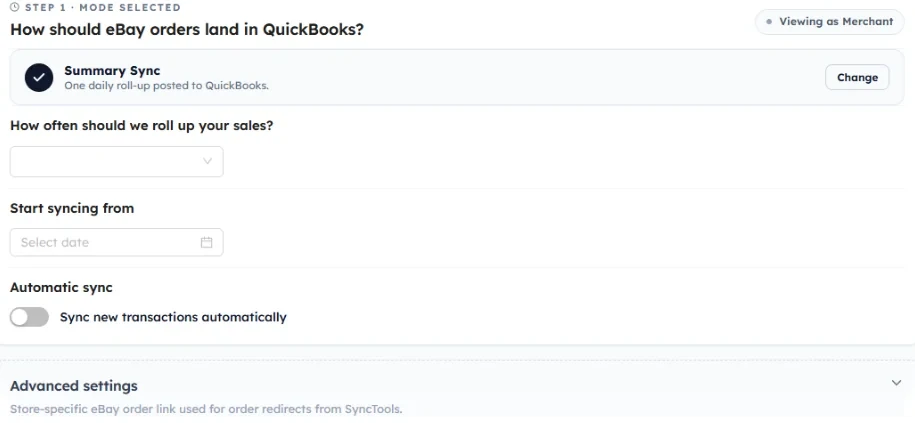
After selecting the eBay order-data importing date and sync frequency, click on "Save & Next". You will then be required to select the countries in which your business operates.
Why choose countries?
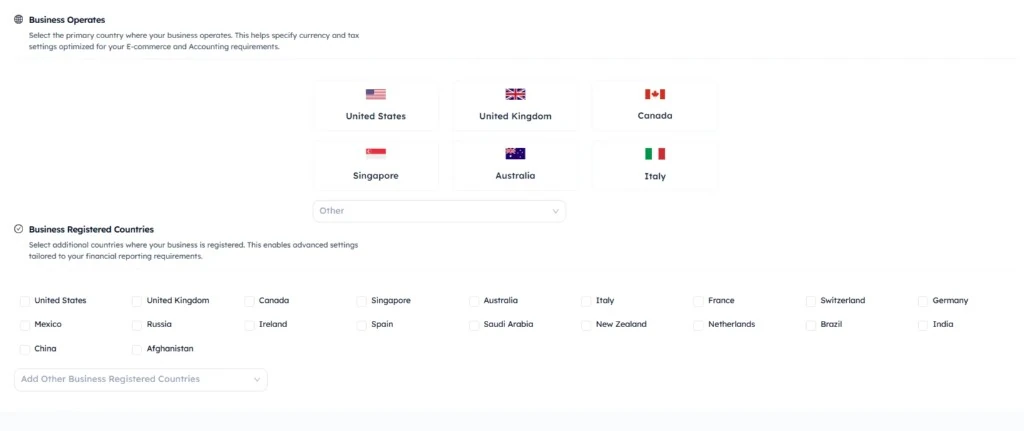
Click on "Save & Next" once the countries are selected, and you will be redirected to "Tax threshold" Preferences. You can either opt for tax preferences if your business is already registered for taxation purposes and engaged in the collection or remittance of sales tax, or hit "No" if this doesn't sound relevant to you.
Tax Threshold Monitoring
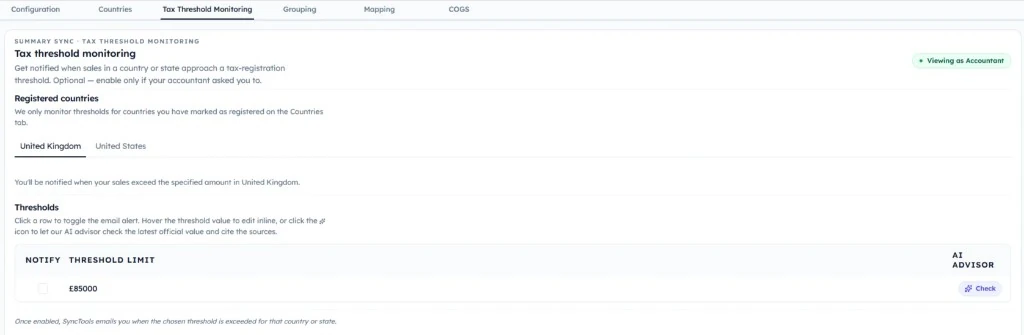
Grouping
This configuration enables how your eBay sales are grouped by SyncTools and determines how journals will be created in your QuickBooks. The screen is divided into two areas - Default Grouping and Classes & Locations.
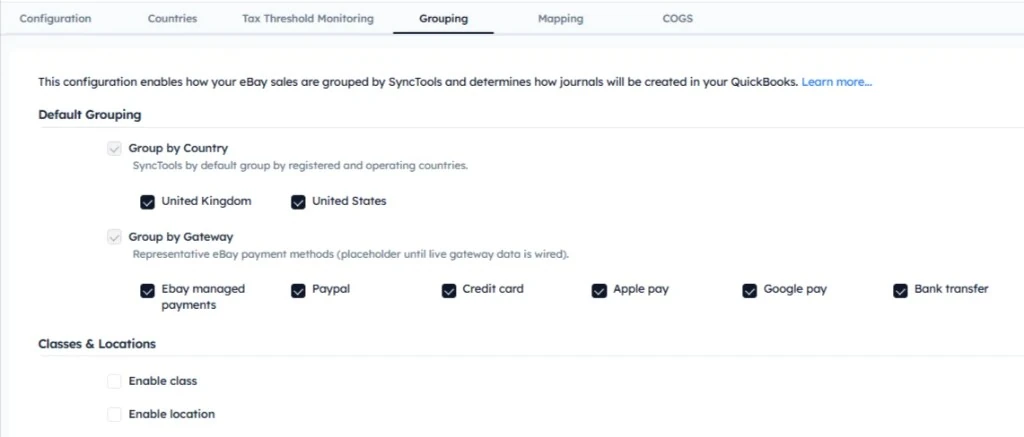
Default Grouping
- Group by Country: Enabled by default. SyncTools groups your eBay transactions by the countries your business is registered in and operates in. Each registered country (for example, United Kingdom) appears as a selectable checkbox - tick the countries you want included in the grouping.
- Group by Gateway: Groups your eBay sales by the payment method used at checkout. The available eBay payment methods are listed as checkboxes - enable the ones you want SyncTools to group and post separately in QuickBooks:
- eBay Managed Payments
- PayPal
- Credit Card
- Apple Pay
Account Mapping
After setting up grouping, you can also enable QuickBooks' class and location mapping with eBay payouts.
Once all grouping settings are configured, you can proceed to map the QuickBooks chart of accounts with eBay transaction types under "Mapping" in the left navigation pane. This mapping process ensures that transactions from eBay are correctly categorized and recorded in QuickBooks according to your desired account structure.
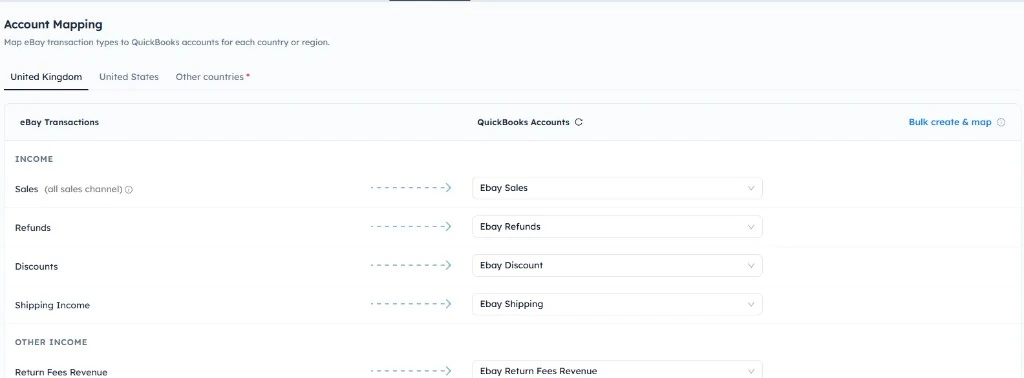
Additionally, SyncTools offers a "Bulk create and Map" option - it automatically maps your eBay transactions to recommended QuickBooks accounts for the selected country. This will pre-populate common mappings to save your time.
COGS
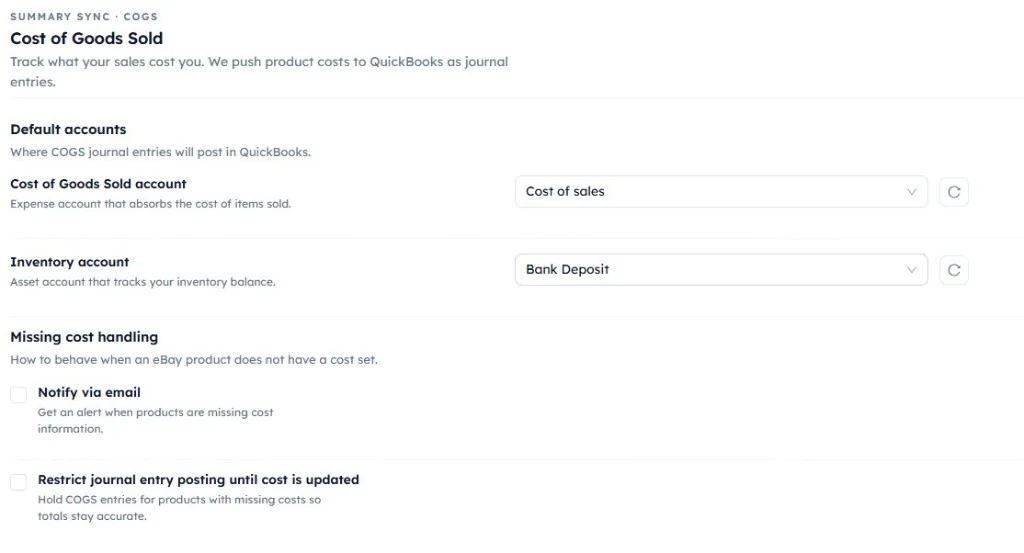
The Cost of Goods Sold (COGS) settings allow you to automatically record the cost of sold products in your accounting software by creating journal entries during synchronization. To configure this feature, select the Cost of Goods Sold Account, which is the expense account where the cost of sold items will be recorded, and the Inventory Account, which is the asset account used to track your inventory value. If newly created accounts are not displayed, click the Refresh icon to reload the account list.
The Missing Cost Handling section determines how SyncTools should handle products that do not have a cost assigned. Enable Notify via Email to receive an alert whenever products with missing cost information are encountered during synchronization, allowing you to update the missing values without interrupting the sync process.
If maintaining accurate financial records is critical, enable Restrict Journal Entry Posting Until Cost is Updated. When this option is selected, SyncTools will not create COGS journal entries for products with missing costs until the cost information is updated. This helps ensure that your inventory valuation and Cost of Goods Sold reports remain accurate and free from incomplete or incorrect accounting entries.
Enable Auto-Sync
On the configuration screen, you will see an "Automatic sync" option, which will help to start the eBay orders syncing automatically per day.
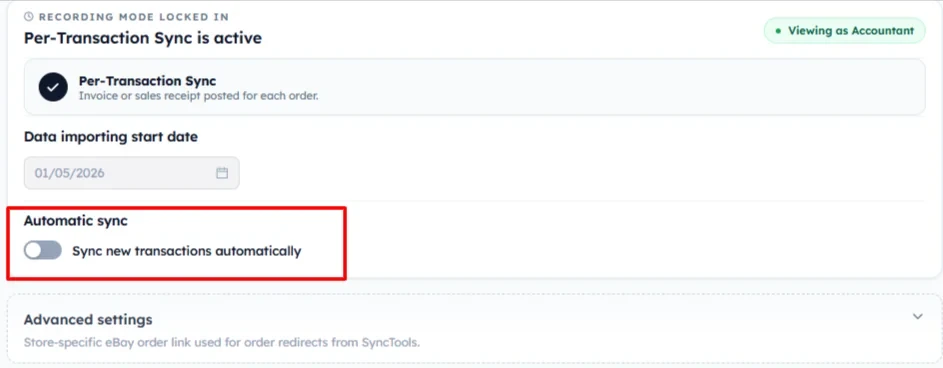
- Auto Sync automates the process of posting eBay payouts in QuickBooks at regular intervals.
- This automation saves time, reduces errors, and ensures up-to-date and accurate financial records by synchronizing data between eBay and QuickBooks automatically, eliminating the need for manual intervention.
Bank Account Configuration
Under this configuration, users can choose the bank account where all eBay payout deposits need to be recorded, and choose one account where any eBay negative balance is to be recorded in QuickBooks.

How to Review and Post eBay Payouts to QuickBooks
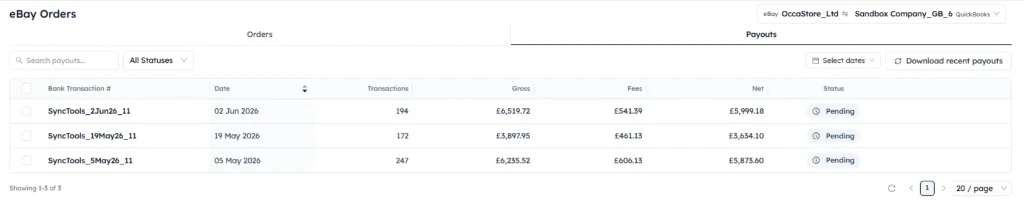
- Begin by accessing the eBay orders downloaded in SyncTools.
- Review the eBay Payout details alongside a QuickBooks preview for the specific payout.
- Once satisfied with the accuracy, proceed to successfully post it into your QuickBooks account by clicking on "Post to QuickBooks". This will turn the payout status to "Posted" in SyncTools.
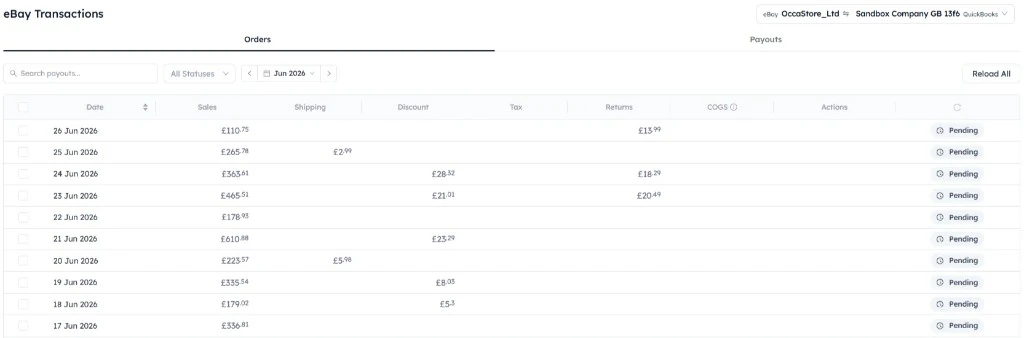
eBay Payout Details
The posted eBay Payout creates a Journal Entry in QuickBooks Online with details in the "Memo" field and a CSV attachment of all the eBay transactions posted in that particular Journal Entry.
Track eBay QuickBooks Synchronization History
- Access to sync history is crucial for transparency and troubleshooting when managing eBay Orders.
- Sync history enables tracking of synchronization processes over time.
- It includes details like sync dates, times, transaction statuses, encountered errors, and actions taken.
Get Help with Your eBay QuickBooks Integration
Access to a dedicated support team is essential for assistance and queries related to setup and ongoing operation of synchronization processes. Support extends to clarifying setup instructions and offering general assistance to enhance the user experience.
You can reach out to us at any time for any kind of support!
Feel free to contact us through the following channels in case of any queries or concerns:
- Email: [email protected]
- Schedule a demo
- Visit the Help Center
Was this article helpful?