
eBay QuickBooks Integration Returns, Refunds & Fees
How SyncTools handles eBay returns, refunds, and seller fees when syncing to QuickBooks Online - including partial refunds, fee credits, and reconciliation.
Configure eBay Refunds in QuickBooks Online
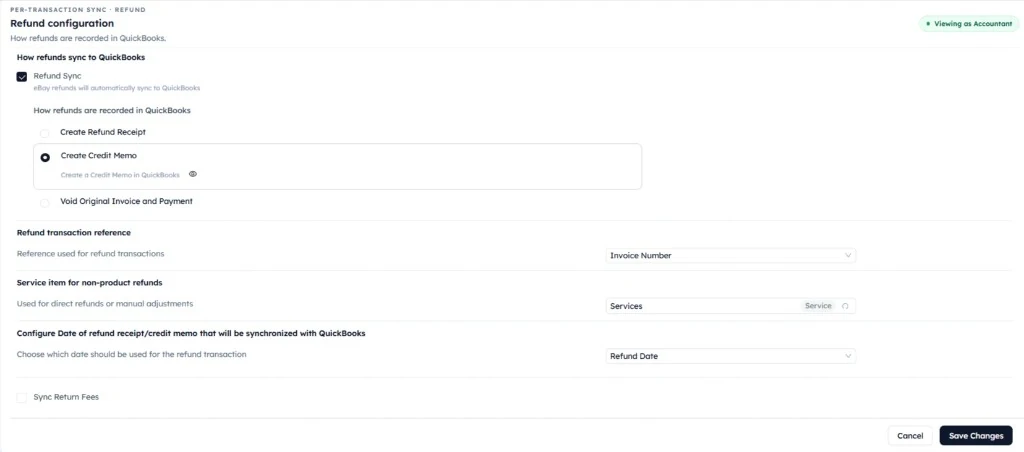
The Refund Configuration settings allow you to control how eBay refunds are synchronized and recorded in QuickBooks.
Enable Refund Sync to automatically sync refund transactions from eBay into QuickBooks Online.
Choose how each refund should be created in QuickBooks by selecting one of these options:
- Create Refund Receipt
- Create Credit Memo
- Void Original Invoice and Payment
Pick the method that matches how your business manages refunds and accounting records.
You can further customize refund synchronization with these settings:
- Refund Transaction Reference — sets the reference value (such as the invoice number) used on refund transactions in QuickBooks.
- Service Item for Non-product Refunds — records manual adjustments, goodwill refunds, and other charges that are not tied to a specific product.
- Refund date — choose whether QuickBooks should use the refund date or the order date so financial reporting stays consistent.
How to Sync eBay Return Fees to QuickBooks Online
If your business needs to account for marketplace return charges, enable Sync Return Fees to synchronize return-related fees along with the refund transaction.
Configuring these settings ensures refund transactions are accurately reflected in QuickBooks while staying consistent with your eBay records and accounting practices.
Was this article helpful?